> ## Documentation Index
> Fetch the complete documentation index at: https://www.klavis.ai/docs/llms.txt
> Use this file to discover all available pages before exploring further.
# Setting Up Discord OAuth App
> Complete guide to creating and configuring a Discord OAuth application
## Prerequisites
* Discord account
* Access to Discord Developer Portal
## Step 1: Create Discord Developer Account
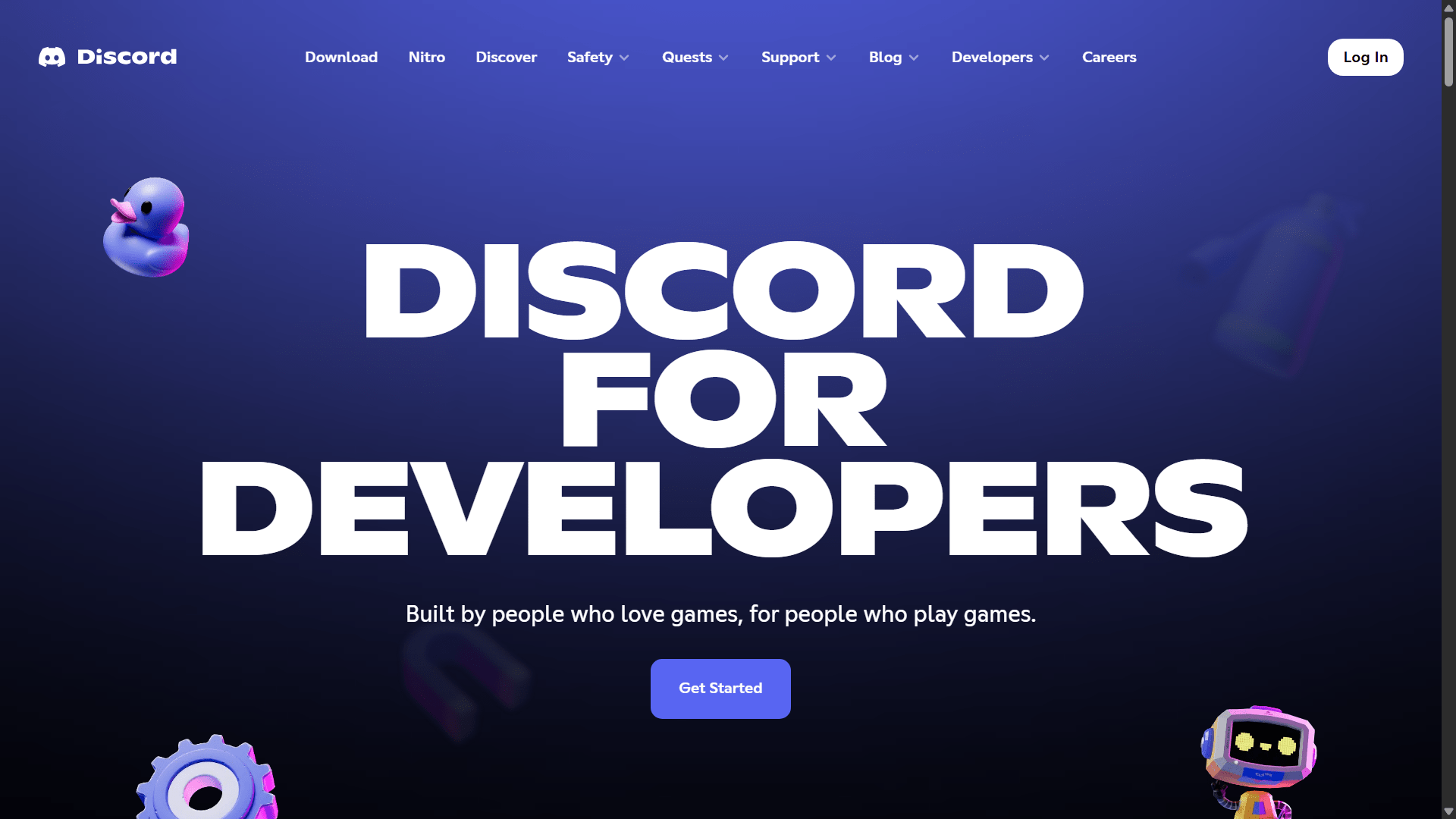
1. Visit [https://discord.com/developers](https://discord.com/developers)
2. Click **"Get Started"** or **"Login"** if you already have an account
3. Sign in with your Discord account or create a new developer account
 ## Step 2: Create a New App
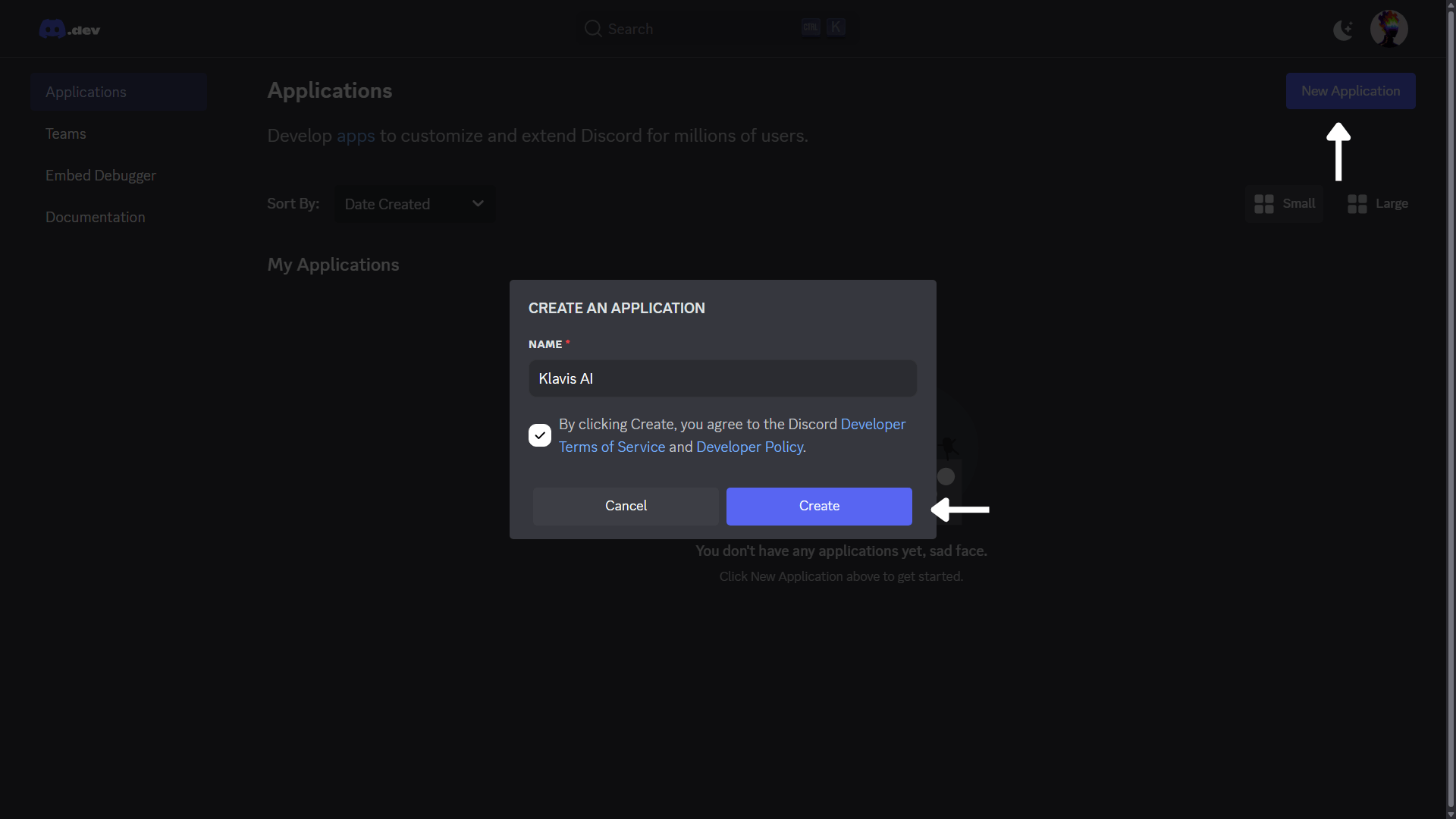
1. Once logged in, go to **"Applications"** in your developer dashboard
2. Click **"New Application"** to create a new app
## Step 2: Create a New App
1. Once logged in, go to **"Applications"** in your developer dashboard
2. Click **"New Application"** to create a new app
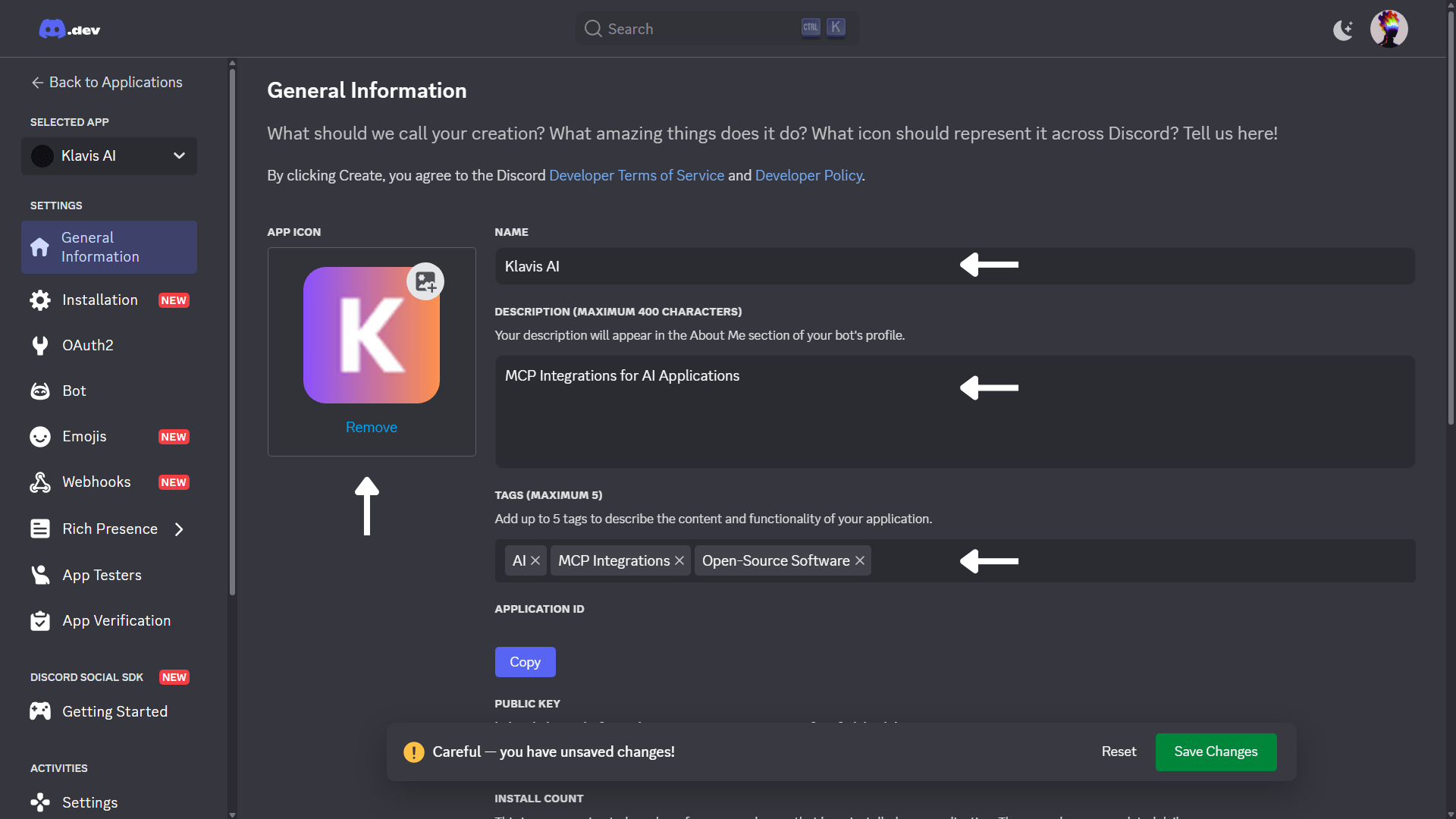
 3. Click on the **"App"** that you just created
4. Go to **"General Information"** section
5. Fill in the app details:
* **App name**: Your application name (e.g., your brand name)
* **App description**: Your application description
* **"App Icon"**: Upload 100x100px PNG (recommended)
* **"Tags"**: Add tags that describe your application
* **Privacy policy URL**: Your privacy policy URL
* **Terms of service URL**: Your terms of service URL
3. Click on the **"App"** that you just created
4. Go to **"General Information"** section
5. Fill in the app details:
* **App name**: Your application name (e.g., your brand name)
* **App description**: Your application description
* **"App Icon"**: Upload 100x100px PNG (recommended)
* **"Tags"**: Add tags that describe your application
* **Privacy policy URL**: Your privacy policy URL
* **Terms of service URL**: Your terms of service URL
 ## Step 3: Build A Bot
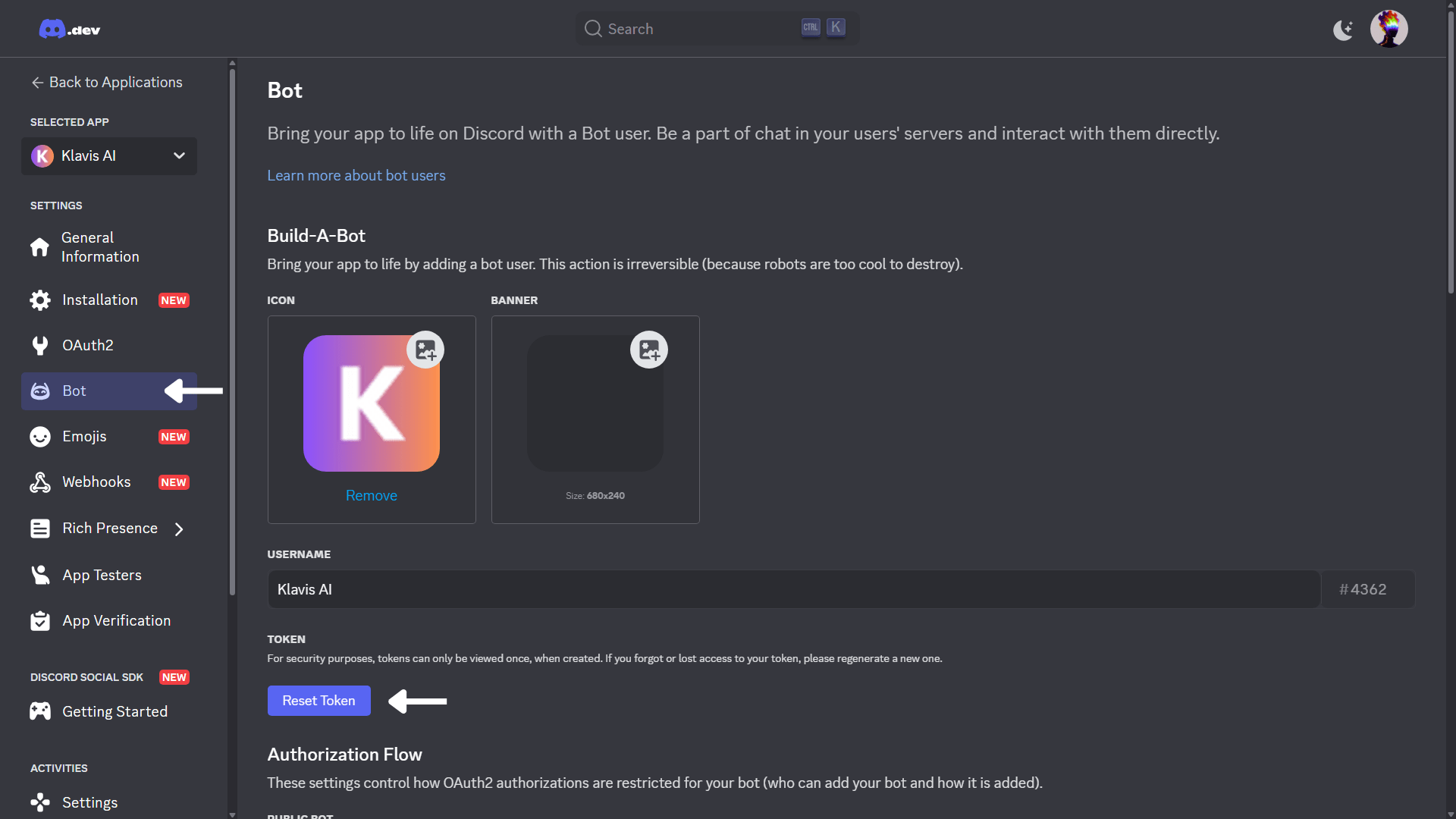
1. Go to **"Bot"** section.
2. Get **Discord Token**:
* Click on **Reset Token** button under **TOKEN** tab
* Enter your **Discord Password** and press **Submit**
* New **Token** has been generated
* **Copy** this token (keep it secure!)
## Step 3: Build A Bot
1. Go to **"Bot"** section.
2. Get **Discord Token**:
* Click on **Reset Token** button under **TOKEN** tab
* Enter your **Discord Password** and press **Submit**
* New **Token** has been generated
* **Copy** this token (keep it secure!)
 3. Set **Bot Permissions**:
* Choose **Administrator** under **General Permissions** (recommended)
3. Set **Bot Permissions**:
* Choose **Administrator** under **General Permissions** (recommended)
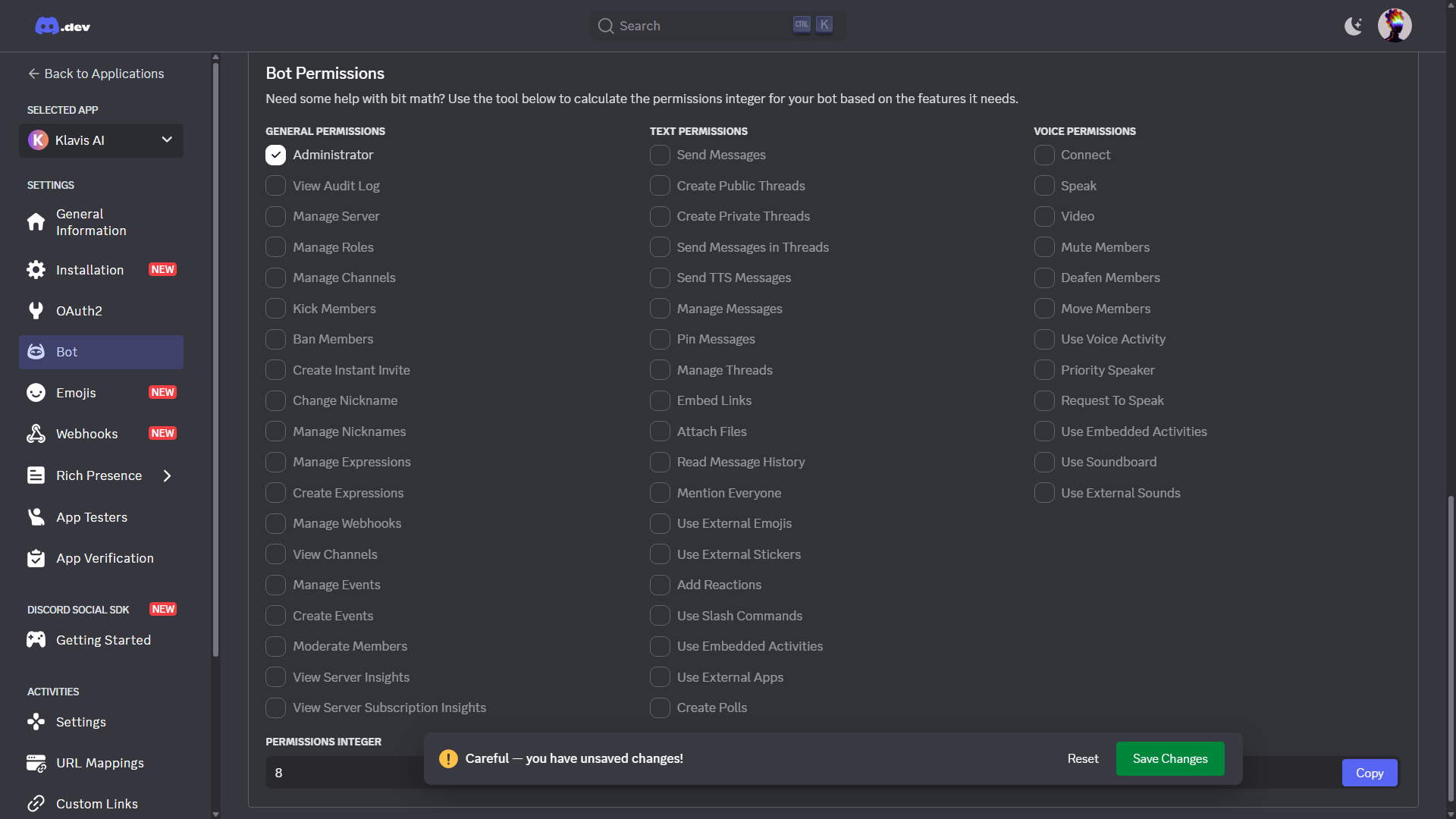 Klavis AI recommends to select required OAuth scopes only.
## Step 4: Configure OAuth Settings
Navigate to **"OAuth2"**:
* **Client ID**: Copy this value
* **Client Secret**: Generate and copy this value (keep it secure!)
* **Redirect URI**: Set as **[https://api.klavis.ai/oauth/discord/callback](https://api.klavis.ai/oauth/discord/callback)**
Klavis AI recommends to select required OAuth scopes only.
## Step 4: Configure OAuth Settings
Navigate to **"OAuth2"**:
* **Client ID**: Copy this value
* **Client Secret**: Generate and copy this value (keep it secure!)
* **Redirect URI**: Set as **[https://api.klavis.ai/oauth/discord/callback](https://api.klavis.ai/oauth/discord/callback)**
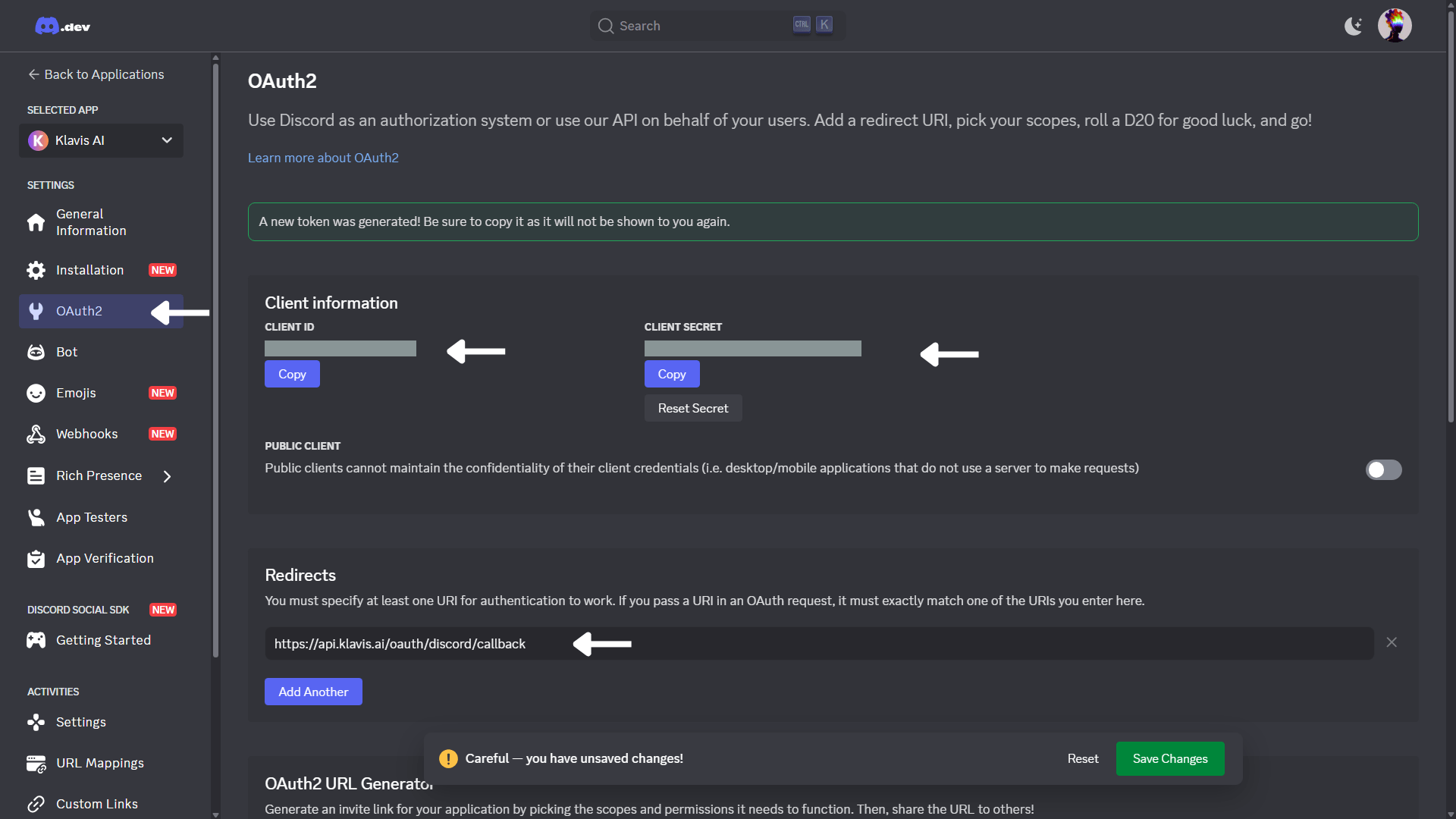 Normally, the redirect URI should be set to: `https://api.klavis.ai/oauth/discord/callback`
## Step 5: OAuth2 URL Generator
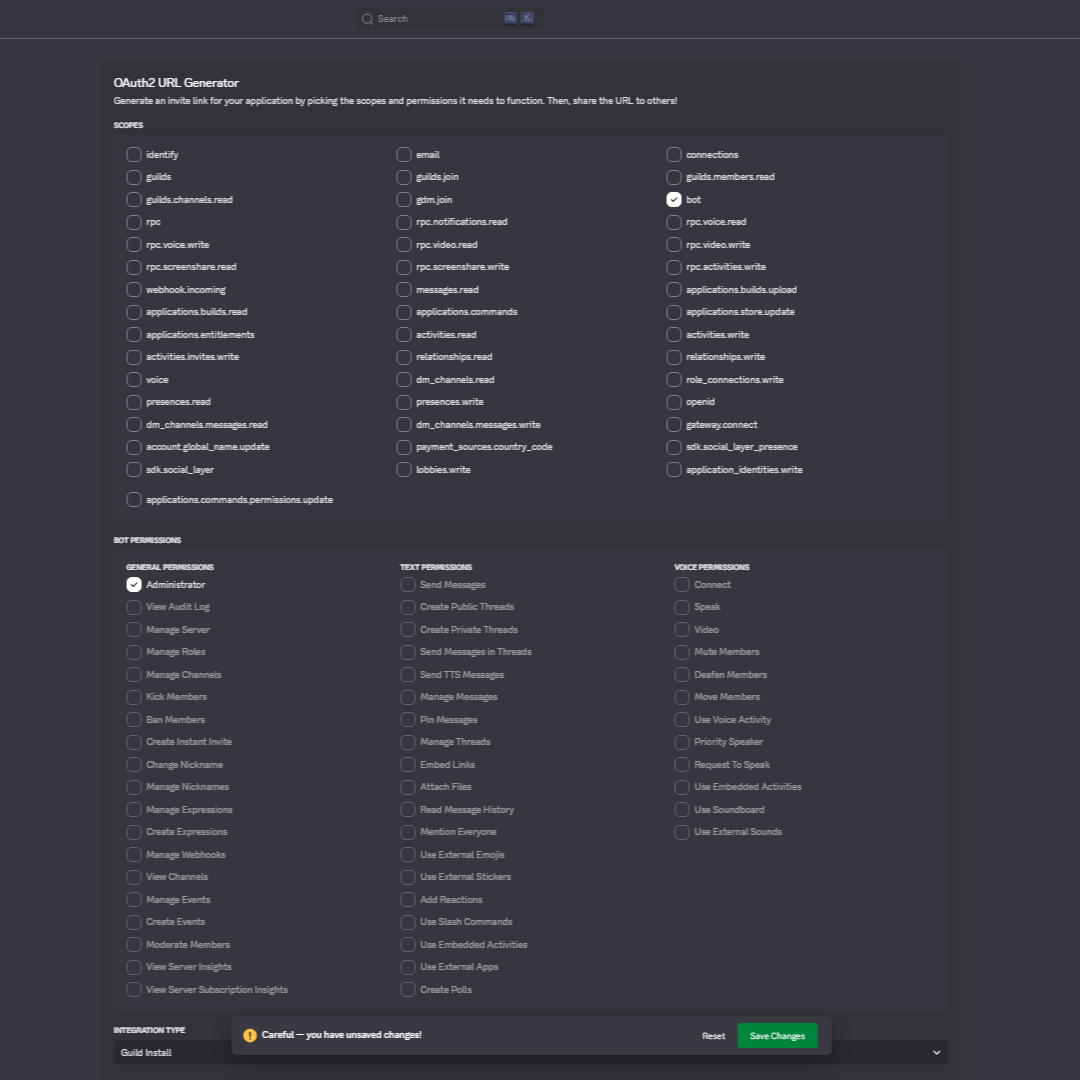
1. Scroll to **Scopes**
* Select **bot** from the scopes list
* For **Bot Permissions**: select **Administrator**
Normally, the redirect URI should be set to: `https://api.klavis.ai/oauth/discord/callback`
## Step 5: OAuth2 URL Generator
1. Scroll to **Scopes**
* Select **bot** from the scopes list
* For **Bot Permissions**: select **Administrator**
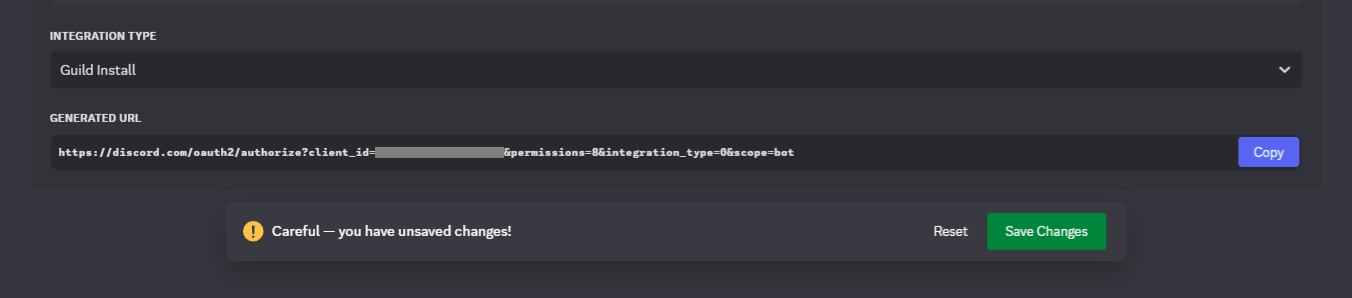
 2. Generate URL:
* Integration Type: **Guild Install** (recommended)
* Copy **Generated URL** and paste in browser to complete authentication
2. Generate URL:
* Integration Type: **Guild Install** (recommended)
* Copy **Generated URL** and paste in browser to complete authentication
 You have successfully created a Discord OAuth application! You now have your Client ID and Client Secret, and Discord Token ready for integration with Klavis AI.
## (Optional) Step 6: White Labeling
White labeling allows you to customize the OAuth experience with your own branding instead of Klavis AI's.
If you want to use your own Discord OAuth application with custom branding:
1. **Configure White Labeling**: Go to [https://www.klavis.ai/home/white-label](https://www.klavis.ai/home/white-label)
2. **Add Your Credentials**: Enter your Discord **Client ID** and **Client Secret** from Step 4
3. **Set Redirect URI**: Use `https://api.klavis.ai/oauth/discord/callback` or your custom callback URL
4. **Initiate OAuth**: Use your client ID when starting the OAuth flow:
```javascript without SDK theme={null}
// Example: Initiating Discord OAuth with white-label
const authUrl = `https://api.klavis.ai/oauth/discord/authorize?instance_id=${instanceId}&client_id=${yourClientId}`;
window.location.href = authUrl;
```
```typescript TypeScript SDK theme={null}
import { Klavis } from "@klavis/sdk";
const klavis = new Klavis({
apiKey: "YOUR_API_KEY"
});
// Example: Initiating Discord OAuth with white-label
const oauthUrl = await klavis.mcpServer.getOAuthUrl({
serverName: Klavis.McpServerName.Discord,
instanceId: instanceId,
clientId: yourClientId,
// redirectUri: YOUR_REDIRECT_URI,
// scope: "YOUR_SCOPES",
});
window.location.href = oauthUrl;
```
```python Python SDK theme={null}
import webbrowser
from klavis import Klavis
from klavis.types import McpServerName
klavis = Klavis(api_key="YOUR_API_KEY")
# Example: Initiating Discord OAuth with white-label
oauth_url = klavis.mcp_server.get_oauth_url(
server_name=McpServerName.Discord,
instance_id=instance_id,
client_id=your_client_id,
# redirect_uri="YOUR_REDIRECT_URI",
# scope="YOUR_SCOPES"
)
# Open OAuth URL in user's default browser
webbrowser.open(oauth_url)
```
For detailed white labeling implementation and code examples, see our [OAuth & White Labeling guide](/docs/auth/white-label).
## Resources
* [Discord Developer Documentation](https://discord.com/developers/docs/intro/)
* [Discord OAuth 2.0 Authentication Guide](https://discord.com/developers/docs/topics/oauth2)
* [Discord API Scopes Reference](https://discord.com/developers/docs/topics/oauth2#shared-resources-oauth2-scopes)
* [Klavis OAuth & White Labeling Guide](/docs/auth/white-label)
* [Klavis White Label Dashboard](https://www.klavis.ai/home/white-label)
You have successfully created a Discord OAuth application! You now have your Client ID and Client Secret, and Discord Token ready for integration with Klavis AI.
## (Optional) Step 6: White Labeling
White labeling allows you to customize the OAuth experience with your own branding instead of Klavis AI's.
If you want to use your own Discord OAuth application with custom branding:
1. **Configure White Labeling**: Go to [https://www.klavis.ai/home/white-label](https://www.klavis.ai/home/white-label)
2. **Add Your Credentials**: Enter your Discord **Client ID** and **Client Secret** from Step 4
3. **Set Redirect URI**: Use `https://api.klavis.ai/oauth/discord/callback` or your custom callback URL
4. **Initiate OAuth**: Use your client ID when starting the OAuth flow:
```javascript without SDK theme={null}
// Example: Initiating Discord OAuth with white-label
const authUrl = `https://api.klavis.ai/oauth/discord/authorize?instance_id=${instanceId}&client_id=${yourClientId}`;
window.location.href = authUrl;
```
```typescript TypeScript SDK theme={null}
import { Klavis } from "@klavis/sdk";
const klavis = new Klavis({
apiKey: "YOUR_API_KEY"
});
// Example: Initiating Discord OAuth with white-label
const oauthUrl = await klavis.mcpServer.getOAuthUrl({
serverName: Klavis.McpServerName.Discord,
instanceId: instanceId,
clientId: yourClientId,
// redirectUri: YOUR_REDIRECT_URI,
// scope: "YOUR_SCOPES",
});
window.location.href = oauthUrl;
```
```python Python SDK theme={null}
import webbrowser
from klavis import Klavis
from klavis.types import McpServerName
klavis = Klavis(api_key="YOUR_API_KEY")
# Example: Initiating Discord OAuth with white-label
oauth_url = klavis.mcp_server.get_oauth_url(
server_name=McpServerName.Discord,
instance_id=instance_id,
client_id=your_client_id,
# redirect_uri="YOUR_REDIRECT_URI",
# scope="YOUR_SCOPES"
)
# Open OAuth URL in user's default browser
webbrowser.open(oauth_url)
```
For detailed white labeling implementation and code examples, see our [OAuth & White Labeling guide](/docs/auth/white-label).
## Resources
* [Discord Developer Documentation](https://discord.com/developers/docs/intro/)
* [Discord OAuth 2.0 Authentication Guide](https://discord.com/developers/docs/topics/oauth2)
* [Discord API Scopes Reference](https://discord.com/developers/docs/topics/oauth2#shared-resources-oauth2-scopes)
* [Klavis OAuth & White Labeling Guide](/docs/auth/white-label)
* [Klavis White Label Dashboard](https://www.klavis.ai/home/white-label)