> ## Documentation Index
> Fetch the complete documentation index at: https://www.klavis.ai/docs/llms.txt
> Use this file to discover all available pages before exploring further.
# Setting Up Dropbox OAuth App
> Complete guide to creating and configuring a Dropbox OAuth application
## Prerequisites
* Dropbox account (personal or business)
* Access to Dropbox Developer Console
## Step 1: Create Dropbox Developer Account & App
1. Visit [https://www.dropbox.com/developers](https://www.dropbox.com/developers) and sign in with your Dropbox credentials
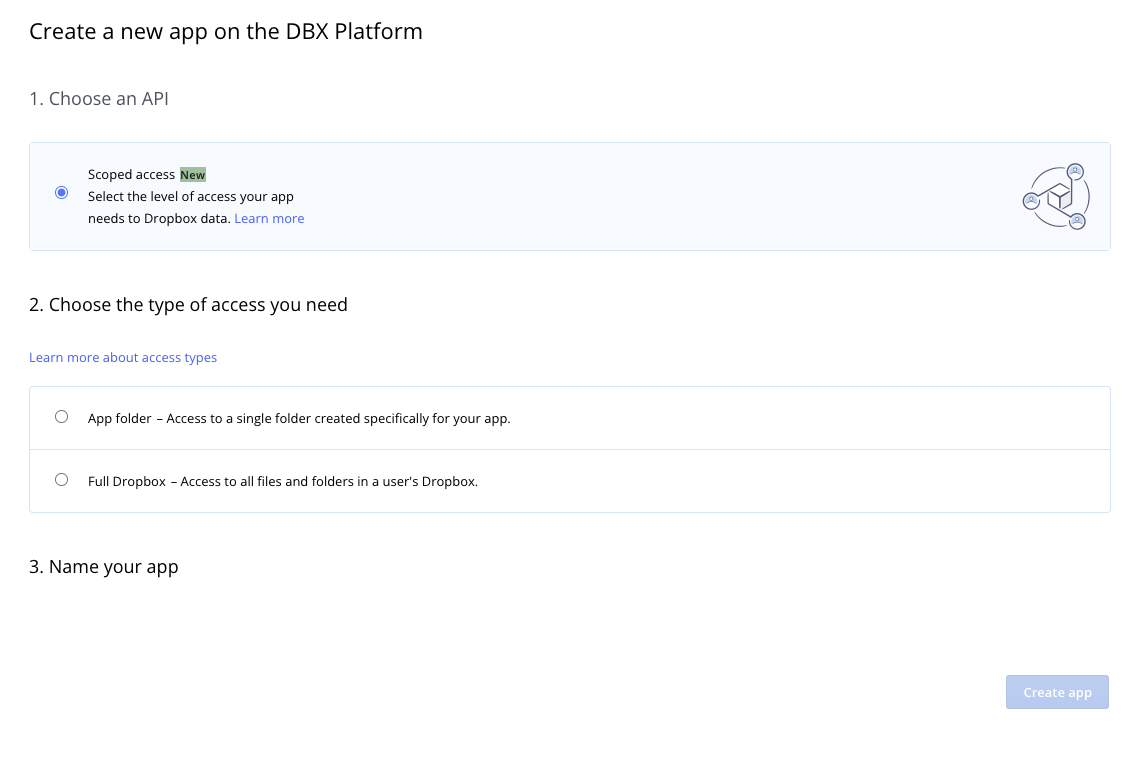
2. Click **"Create apps"** and fill out the form:
* **Choose an API**: Select **"Scoped access"**
* **Choose the type of access**: Select **"Full Dropbox"** for complete access or **"App folder"** for restricted access
* **Name your app**: Choose a descriptive name for your application
* **Choose the Dropbox account**: Select your personal or business account
 ## Step 2: Configure OAuth Settings
1. After creating the app, you'll be redirected to the app settings page
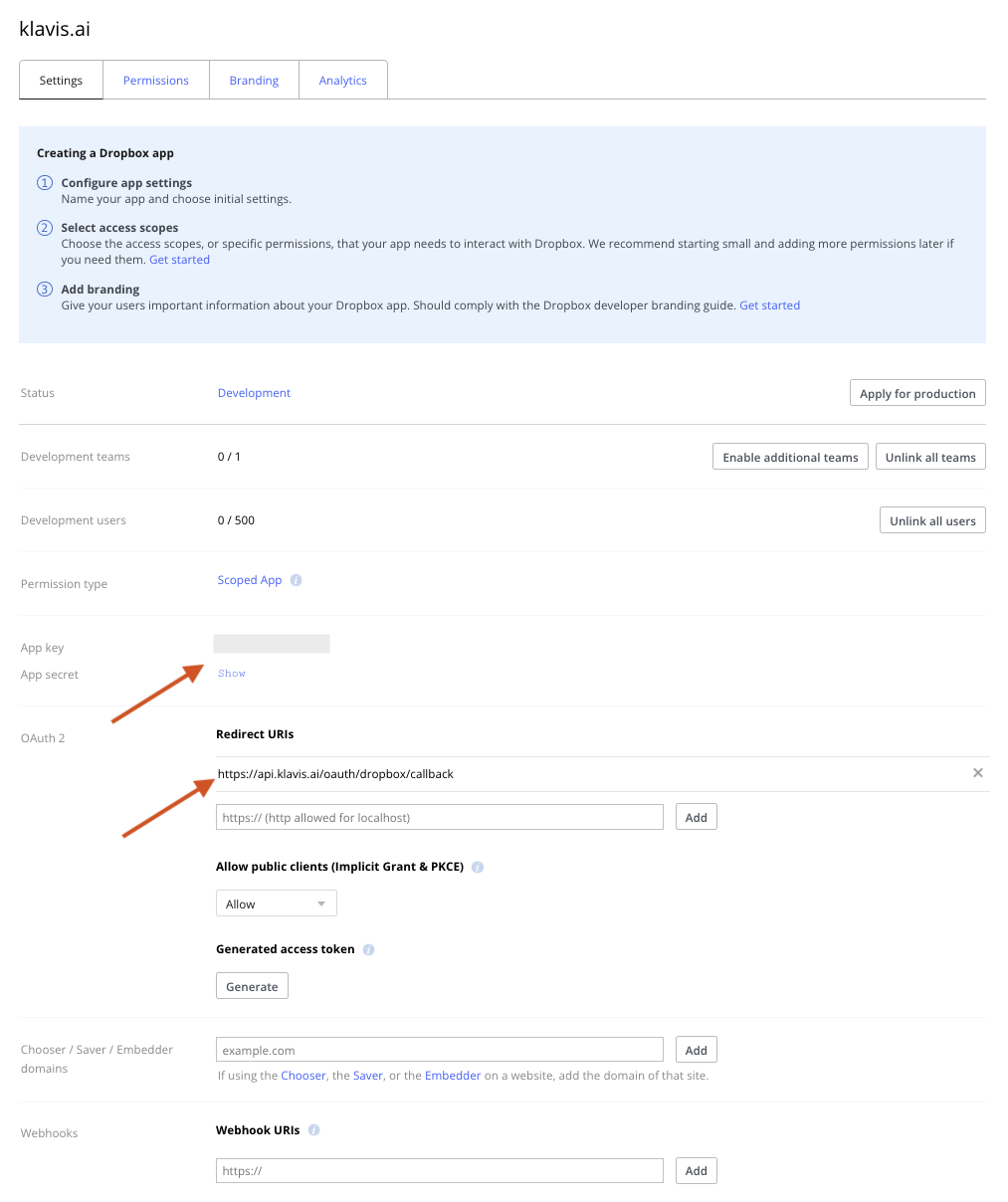
2. In **"OAuth 2"** section, add redirect URLs:
* `https://api.klavis.ai/oauth/dropbox/callback`
3. Note your **App key** and **App secret**
## Step 2: Configure OAuth Settings
1. After creating the app, you'll be redirected to the app settings page
2. In **"OAuth 2"** section, add redirect URLs:
* `https://api.klavis.ai/oauth/dropbox/callback`
3. Note your **App key** and **App secret**
 ## Step 3: Set Required Permissions
Klavis Dropbox MCP Server uses the following OAuth scopes: `account_info.read files.metadata.read files.metadata.write files.content.read files.content.write file_requests.read file_requests.write sharing.read sharing.write contacts.read contacts.write`
1. Go to the **"Permissions"** tab and configure the required permissions as shown in the screenshot below:
## Step 3: Set Required Permissions
Klavis Dropbox MCP Server uses the following OAuth scopes: `account_info.read files.metadata.read files.metadata.write files.content.read files.content.write file_requests.read file_requests.write sharing.read sharing.write contacts.read contacts.write`
1. Go to the **"Permissions"** tab and configure the required permissions as shown in the screenshot below:
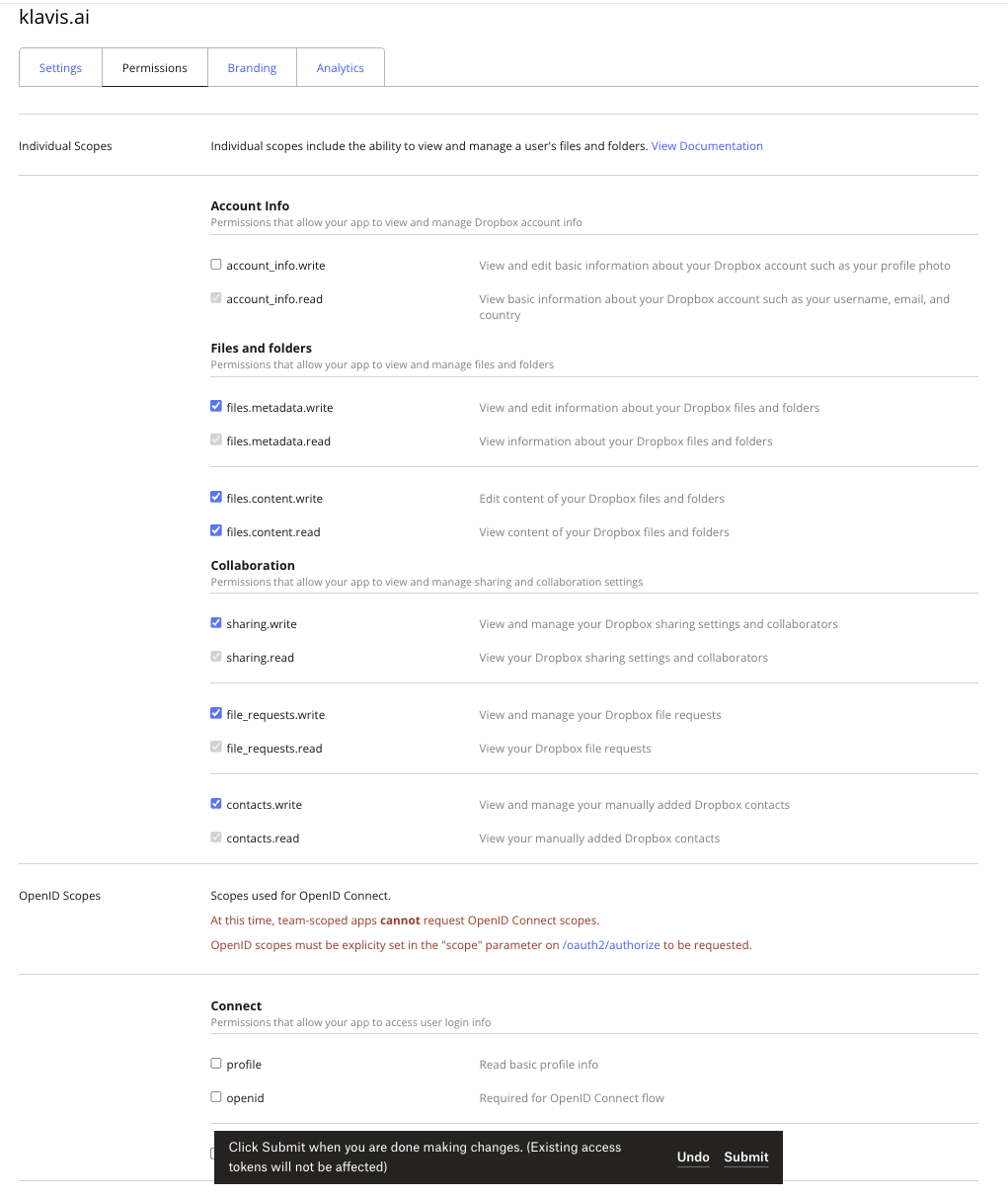 2. Click **"Submit"** to save your permission settings
You have successfully created a Dropbox OAuth application! You now have your App Key and App Secret ready for integration with Klavis AI.
**Klavis handles all token management automatically** - we securely store and manage your tokens so you maintain seamless access to your Dropbox data without any interruption.
## (Local Testing) Step 4: Generate Access Token
1. In the **"Settings"** tab, scroll to the **"OAuth 2"** section
2. Click **"Generate"** under **"Generated access token"**
3. Copy and securely store the generated token
## (Optional) Step 5: White Labeling
White labeling allows you to customize the OAuth experience with your own branding instead of Klavis AI's.
If you want to use your own Dropbox OAuth application with custom branding:
1. **Configure White Labeling**: Go to [https://www.klavis.ai/home/white-label](https://www.klavis.ai/home/white-label)
2. **Add Your Credentials**: Enter your Dropbox **App Key** and **App Secret** from Step 2
3. **Set Redirect URI**: Use `https://api.klavis.ai/oauth/dropbox/callback` or your custom callback URL
4. **Initiate OAuth**: Use your client ID when starting the OAuth flow:
```javascript without SDK theme={null}
// Example: Initiating Dropbox OAuth with white-label
const authUrl = `https://api.klavis.ai/oauth/dropbox/authorize?instance_id=${instanceId}&client_id=${yourAppKey}`;
window.location.href = authUrl;
```
```typescript TypeScript SDK theme={null}
import { Klavis } from "@klavis/sdk";
const klavis = new Klavis({
apiKey: "YOUR_API_KEY"
});
// Example: Initiating Dropbox OAuth with white-label
const oauthUrl = await klavis.mcpServer.getOAuthUrl({
serverName: Klavis.McpServerName.Dropbox,
instanceId: instanceId,
clientId: yourAppKey,
// redirectUri: YOUR_REDIRECT_URI,
// scope: "YOUR_SCOPES",
});
window.location.href = oauthUrl;
```
```python Python SDK theme={null}
import webbrowser
from klavis import Klavis
from klavis.types import McpServerName
klavis = Klavis(api_key="YOUR_API_KEY")
# Example: Initiating Dropbox OAuth with white-label
oauth_url = klavis.mcp_server.get_oauth_url(
server_name=McpServerName.DROPBOX,
instance_id=instance_id,
client_id=your_app_key,
# redirect_uri="YOUR_REDIRECT_URI",
# scope="YOUR_SCOPES"
)
# Open OAuth URL in user's default browser
webbrowser.open(oauth_url)
```
For detailed white labeling implementation and code examples, see our [OAuth & White Labeling guide](/docs/auth/white-label).
## Resources
* [Dropbox OAuth Guide](https://developers.dropbox.com/oauth-guide)
* [Dropbox OAuth 2.0 Documentation](https://www.dropbox.com/developers/http/documentation#oauth2-authorize)
* [Dropbox Developer Apps Console](https://www.dropbox.com/developers/apps)
* [Klavis OAuth & White Labeling Guide](/docs/auth/white-label)
* [Klavis White Label Dashboard](https://www.klavis.ai/home/white-label)
2. Click **"Submit"** to save your permission settings
You have successfully created a Dropbox OAuth application! You now have your App Key and App Secret ready for integration with Klavis AI.
**Klavis handles all token management automatically** - we securely store and manage your tokens so you maintain seamless access to your Dropbox data without any interruption.
## (Local Testing) Step 4: Generate Access Token
1. In the **"Settings"** tab, scroll to the **"OAuth 2"** section
2. Click **"Generate"** under **"Generated access token"**
3. Copy and securely store the generated token
## (Optional) Step 5: White Labeling
White labeling allows you to customize the OAuth experience with your own branding instead of Klavis AI's.
If you want to use your own Dropbox OAuth application with custom branding:
1. **Configure White Labeling**: Go to [https://www.klavis.ai/home/white-label](https://www.klavis.ai/home/white-label)
2. **Add Your Credentials**: Enter your Dropbox **App Key** and **App Secret** from Step 2
3. **Set Redirect URI**: Use `https://api.klavis.ai/oauth/dropbox/callback` or your custom callback URL
4. **Initiate OAuth**: Use your client ID when starting the OAuth flow:
```javascript without SDK theme={null}
// Example: Initiating Dropbox OAuth with white-label
const authUrl = `https://api.klavis.ai/oauth/dropbox/authorize?instance_id=${instanceId}&client_id=${yourAppKey}`;
window.location.href = authUrl;
```
```typescript TypeScript SDK theme={null}
import { Klavis } from "@klavis/sdk";
const klavis = new Klavis({
apiKey: "YOUR_API_KEY"
});
// Example: Initiating Dropbox OAuth with white-label
const oauthUrl = await klavis.mcpServer.getOAuthUrl({
serverName: Klavis.McpServerName.Dropbox,
instanceId: instanceId,
clientId: yourAppKey,
// redirectUri: YOUR_REDIRECT_URI,
// scope: "YOUR_SCOPES",
});
window.location.href = oauthUrl;
```
```python Python SDK theme={null}
import webbrowser
from klavis import Klavis
from klavis.types import McpServerName
klavis = Klavis(api_key="YOUR_API_KEY")
# Example: Initiating Dropbox OAuth with white-label
oauth_url = klavis.mcp_server.get_oauth_url(
server_name=McpServerName.DROPBOX,
instance_id=instance_id,
client_id=your_app_key,
# redirect_uri="YOUR_REDIRECT_URI",
# scope="YOUR_SCOPES"
)
# Open OAuth URL in user's default browser
webbrowser.open(oauth_url)
```
For detailed white labeling implementation and code examples, see our [OAuth & White Labeling guide](/docs/auth/white-label).
## Resources
* [Dropbox OAuth Guide](https://developers.dropbox.com/oauth-guide)
* [Dropbox OAuth 2.0 Documentation](https://www.dropbox.com/developers/http/documentation#oauth2-authorize)
* [Dropbox Developer Apps Console](https://www.dropbox.com/developers/apps)
* [Klavis OAuth & White Labeling Guide](/docs/auth/white-label)
* [Klavis White Label Dashboard](https://www.klavis.ai/home/white-label)