> ## Documentation Index
> Fetch the complete documentation index at: https://www.klavis.ai/docs/llms.txt
> Use this file to discover all available pages before exploring further.
# Setting Up Google Calendar OAuth App
> Complete guide to creating and configuring a Google Calendar OAuth application
## Prerequisites
* Google account
## Step 1: Create a Project
1. Visit [https://console.cloud.google.com/home/dashboard](https://console.cloud.google.com/home/dashboard) and select the project dropdown at the top.
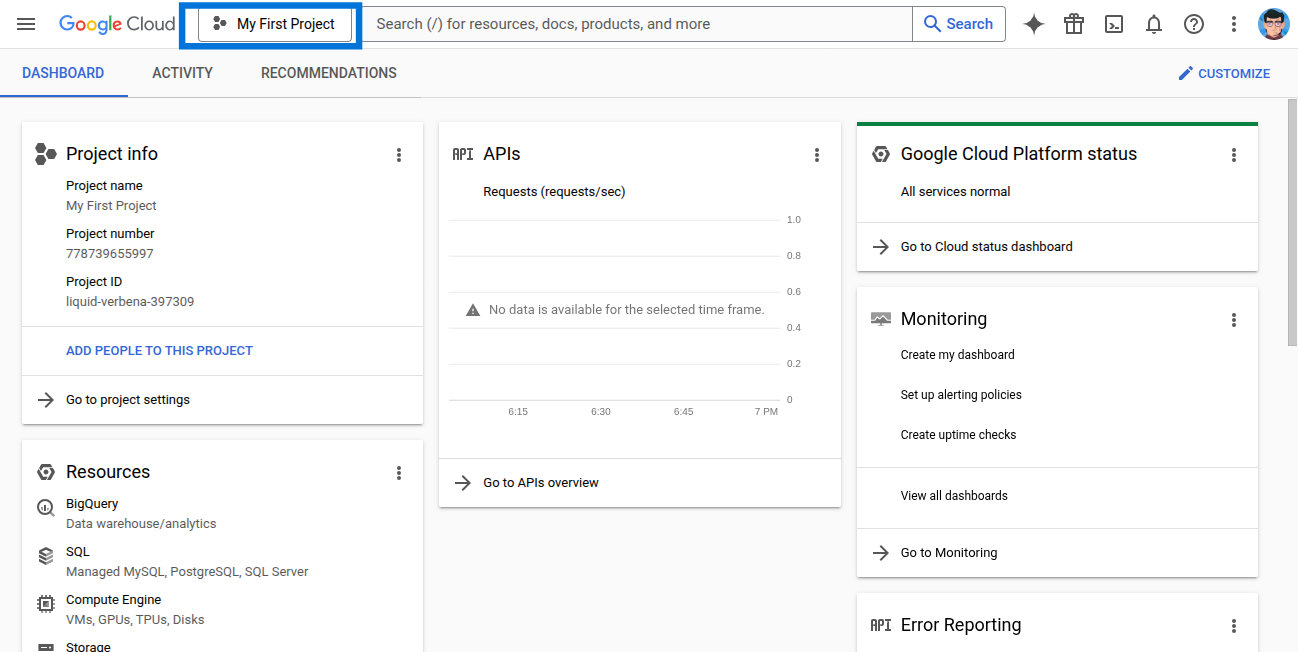 2. Click **New Project**.
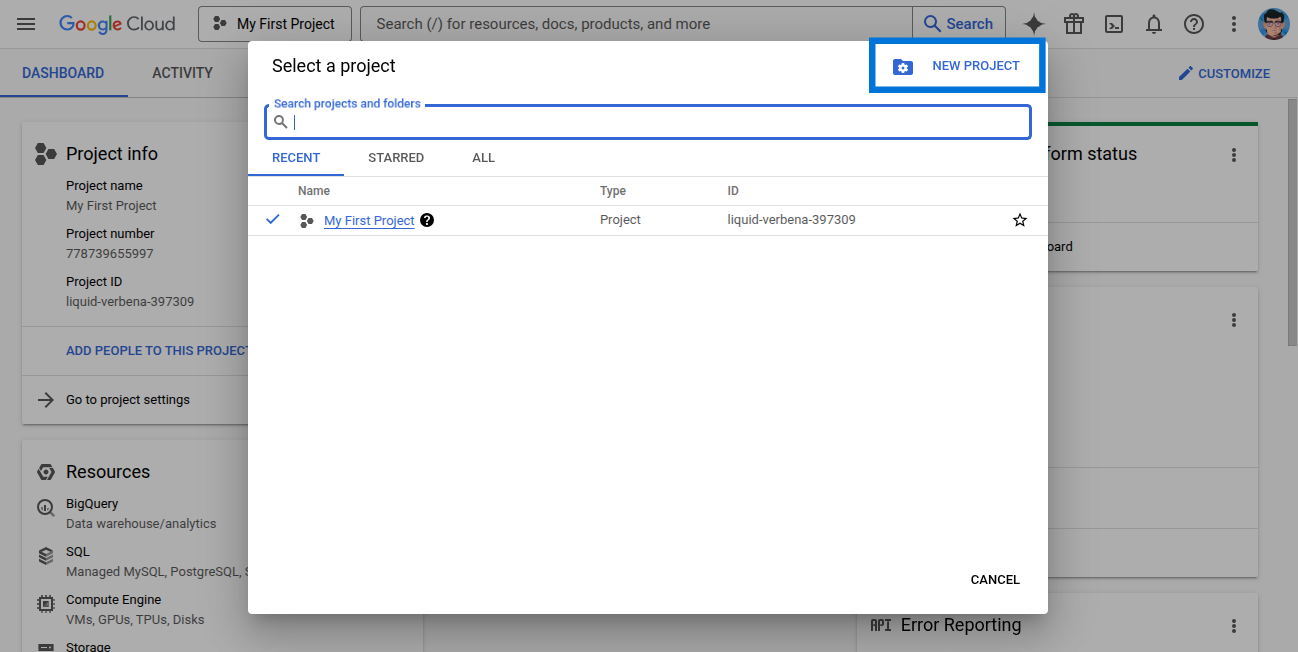 3. Enter the project details and click **Create**.
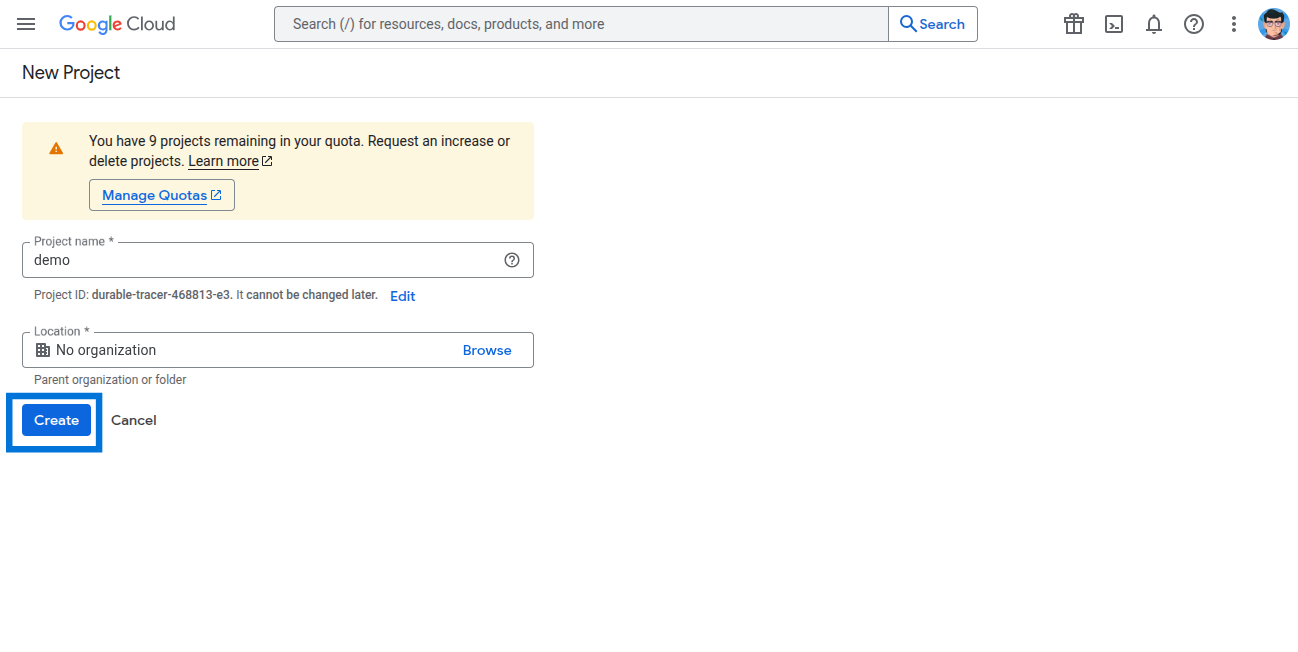 4. Select your newly created project.
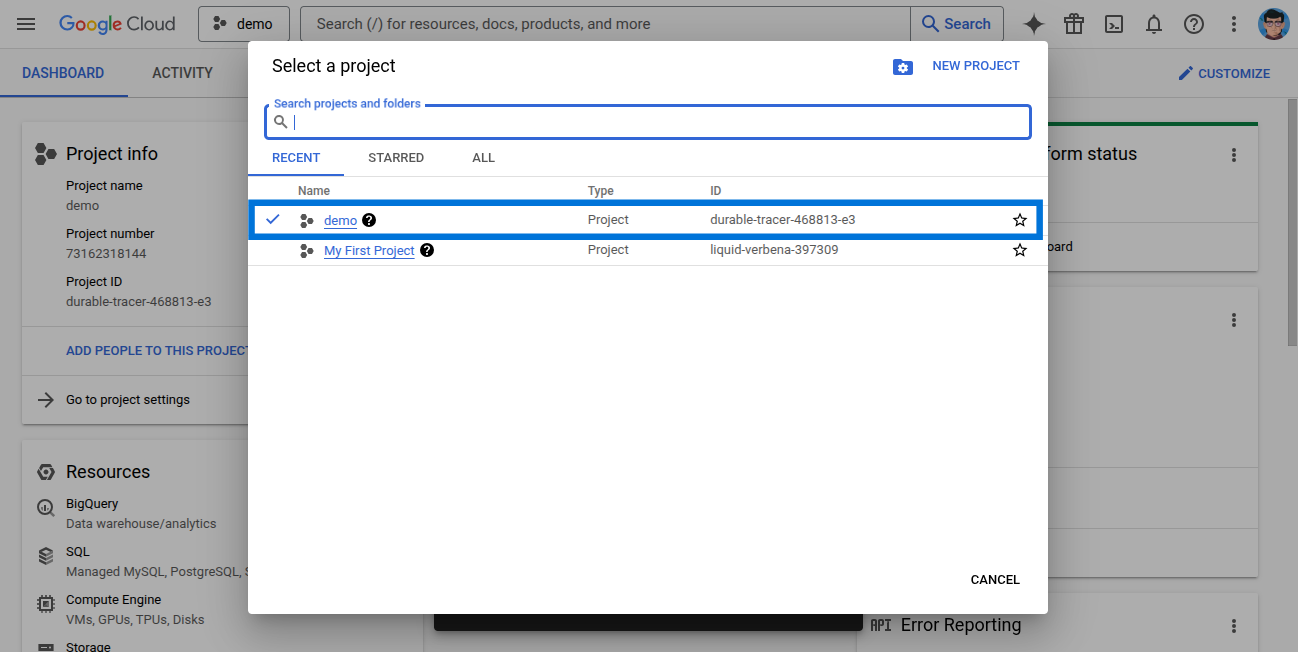 5. Go to **APIs & Services**.
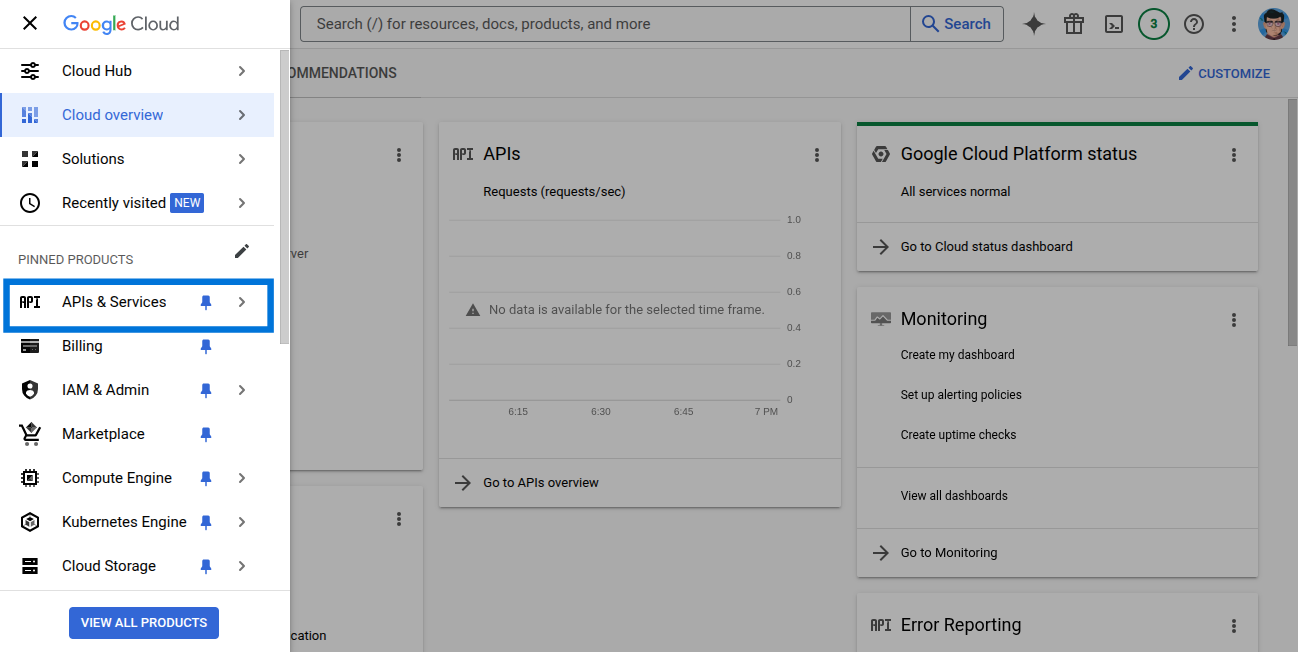 6. Click **Enable APIs and Services**.
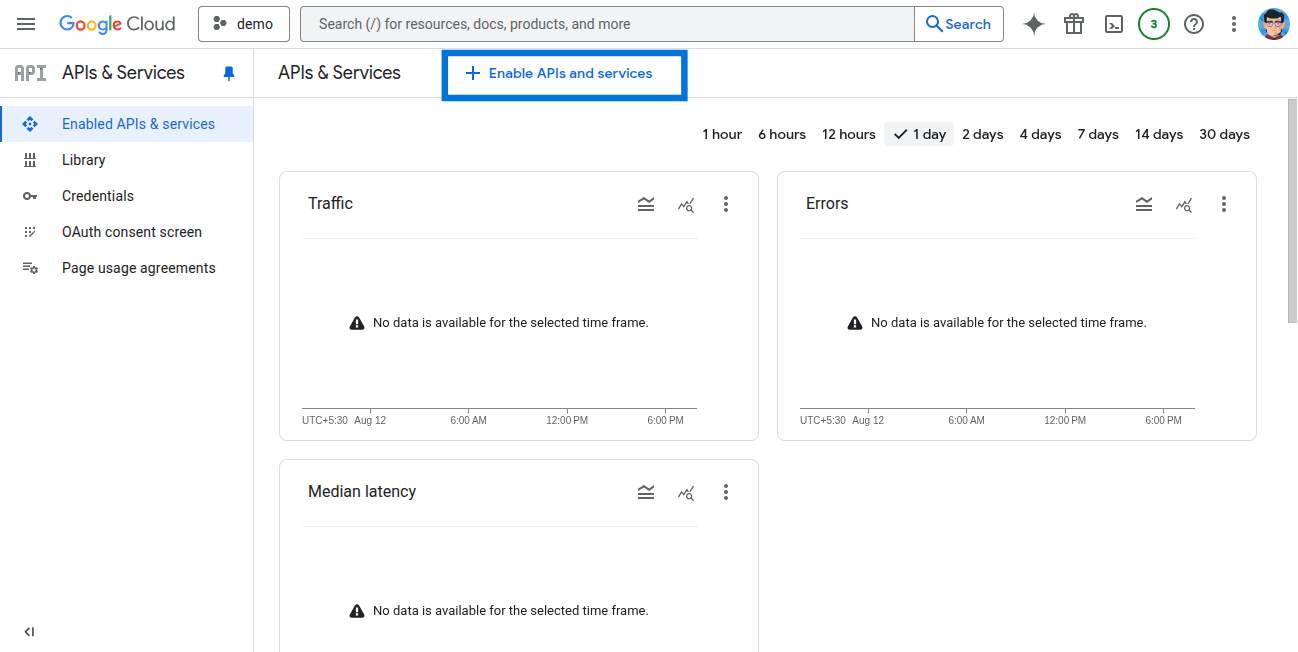 7. Search for and select **Google Calendar API**.
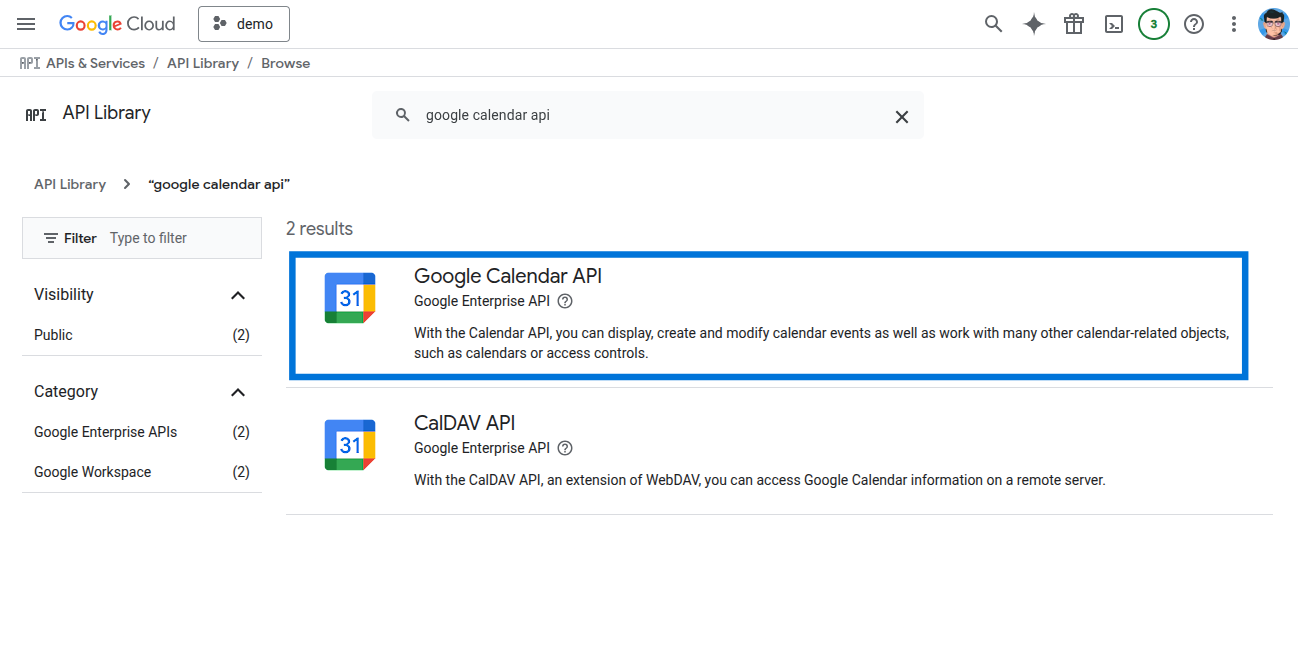 8. Click **Enable**.
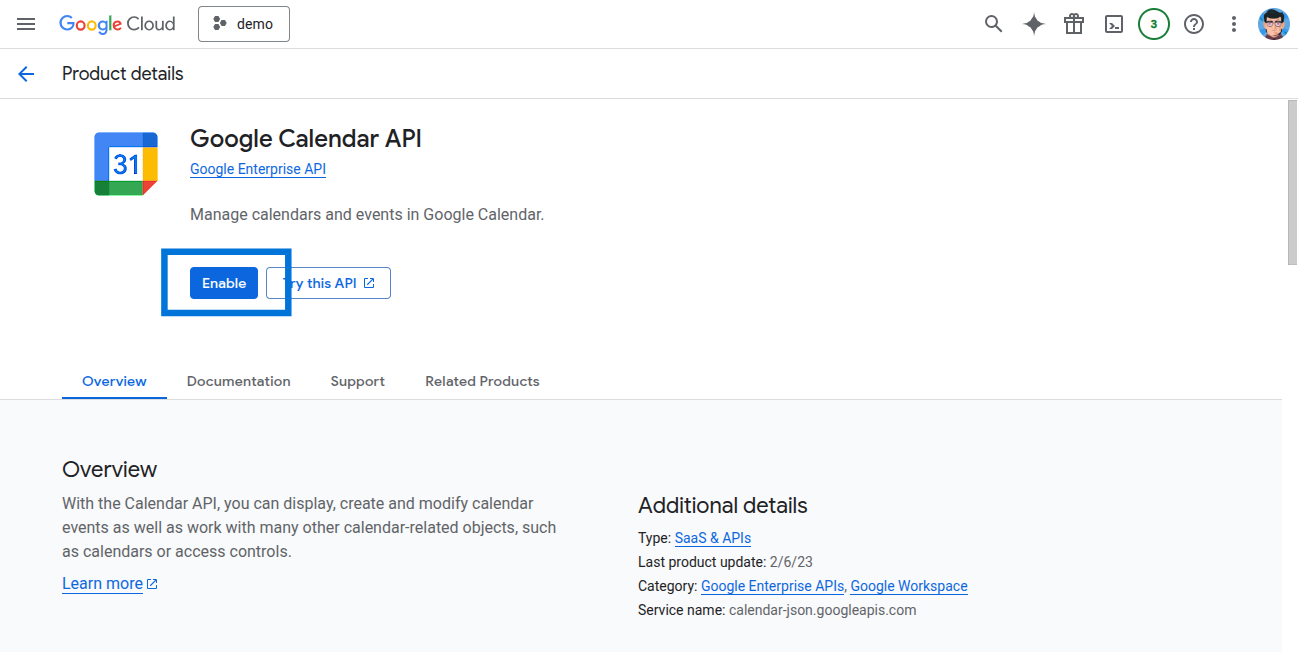 9. Go back to **APIs & Services** and select **OAuth consent screen**.
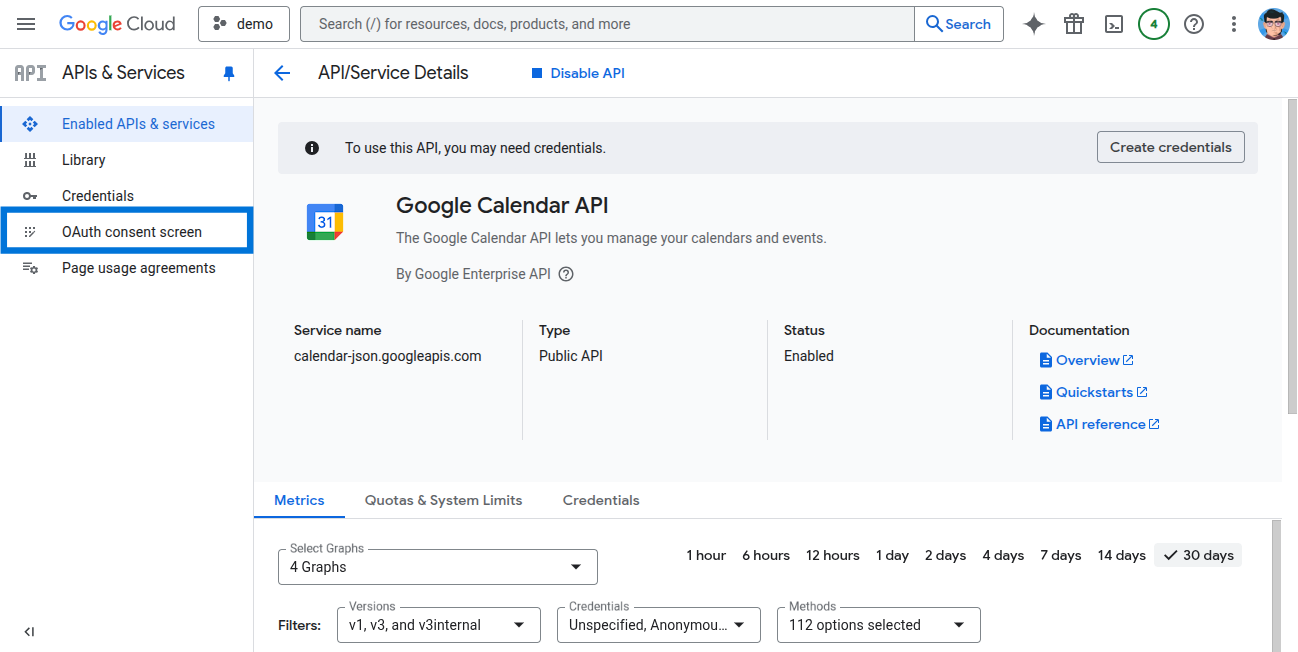 10. Enter the required information and save.
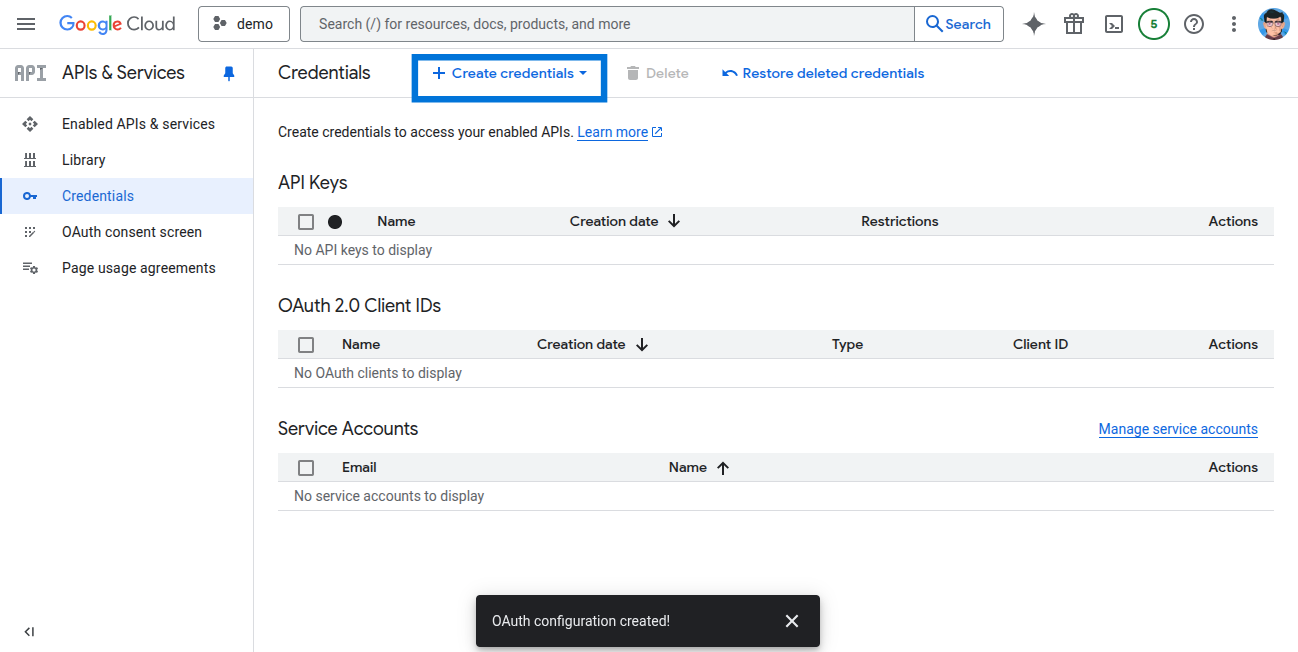
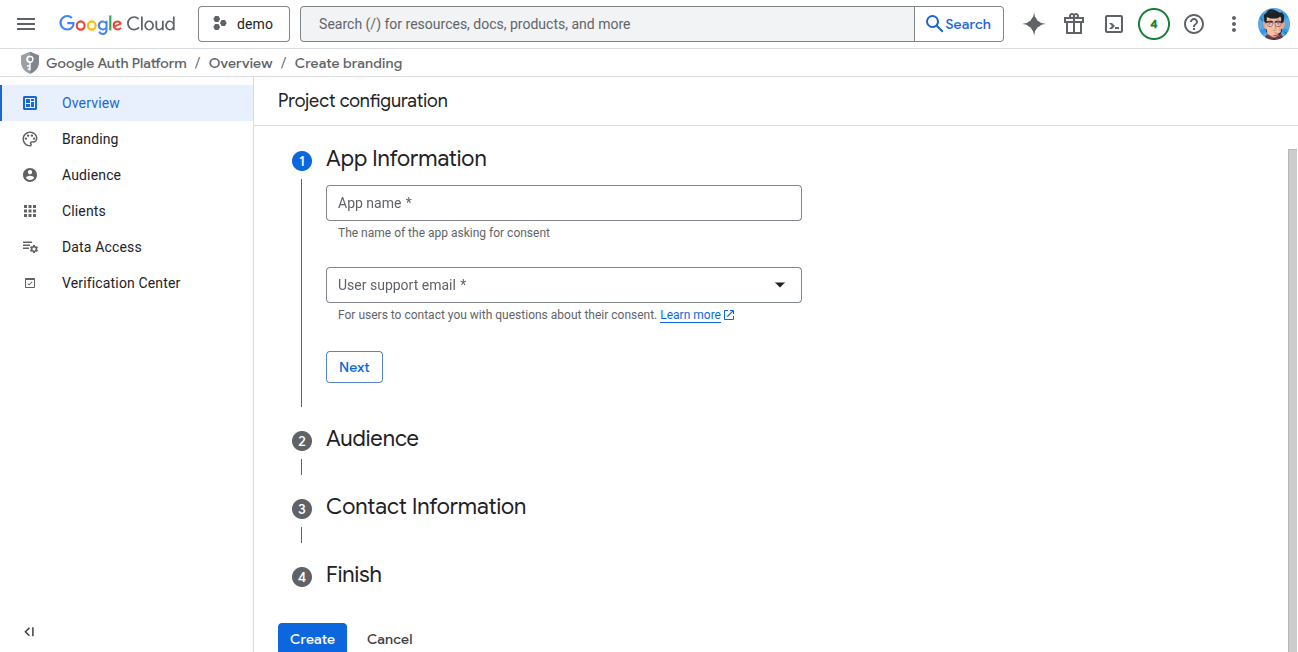 11. Go to **Credentials** in APIs & Services and click **Create Credentials**.
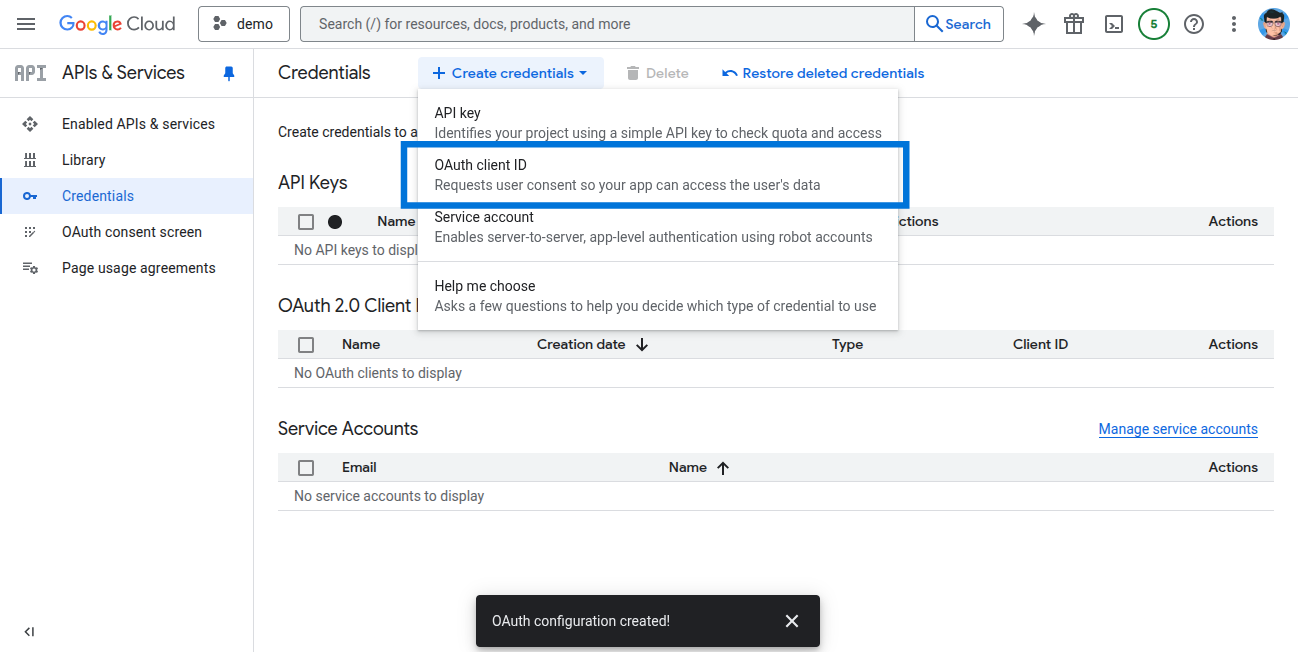
 12. Select **OAuth Client ID**.
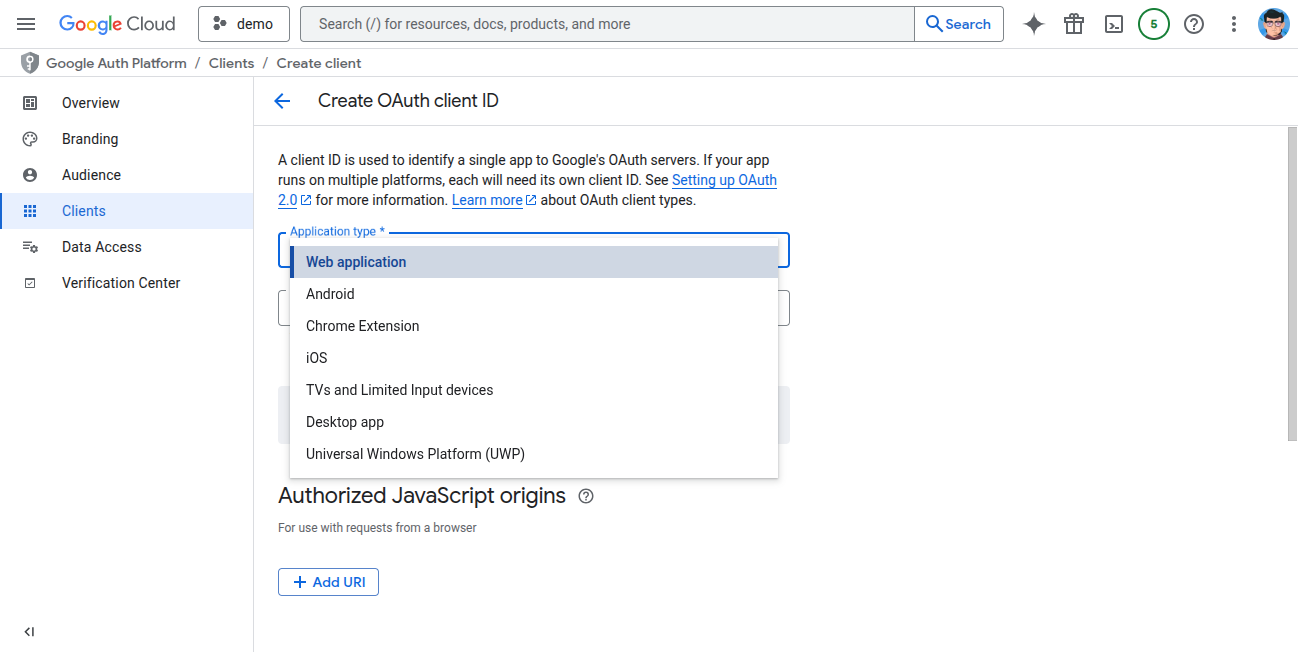
 13. Choose **Web Application** and enter the required details.
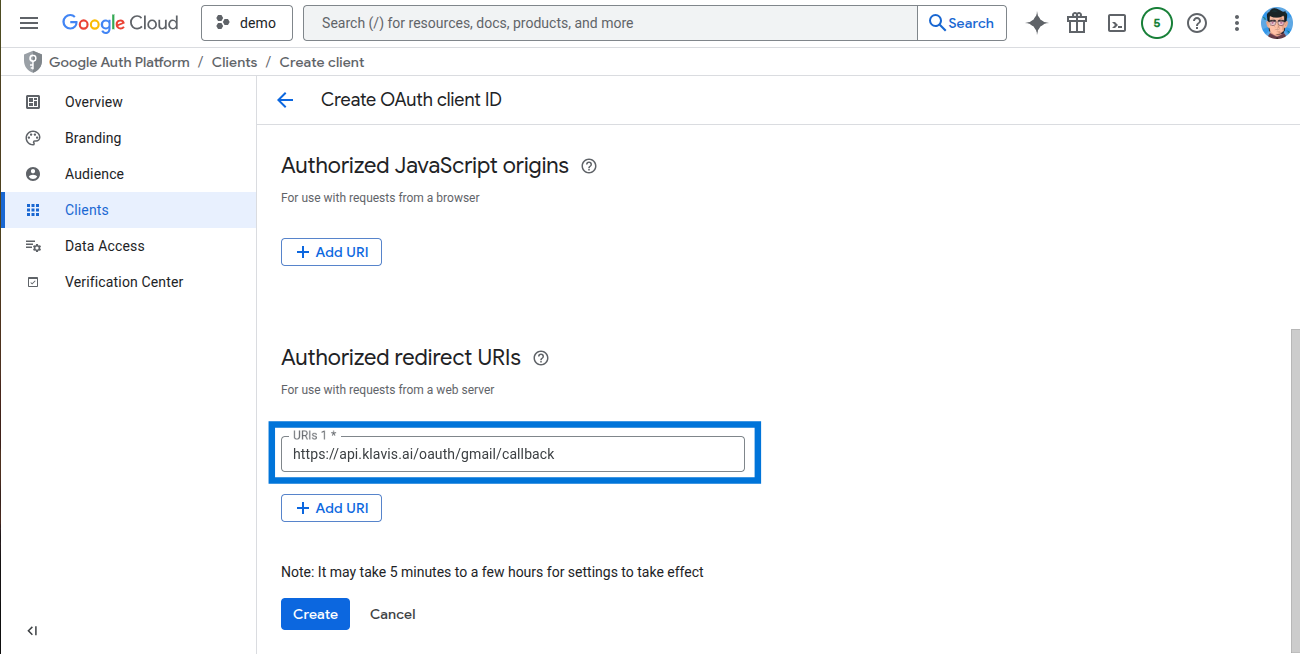
 14. Add redirect URLs:
`https://api.klavis.ai/oauth/gcalendar/callback`
Then click **Create**.
14. Add redirect URLs:
`https://api.klavis.ai/oauth/gcalendar/callback`
Then click **Create**.
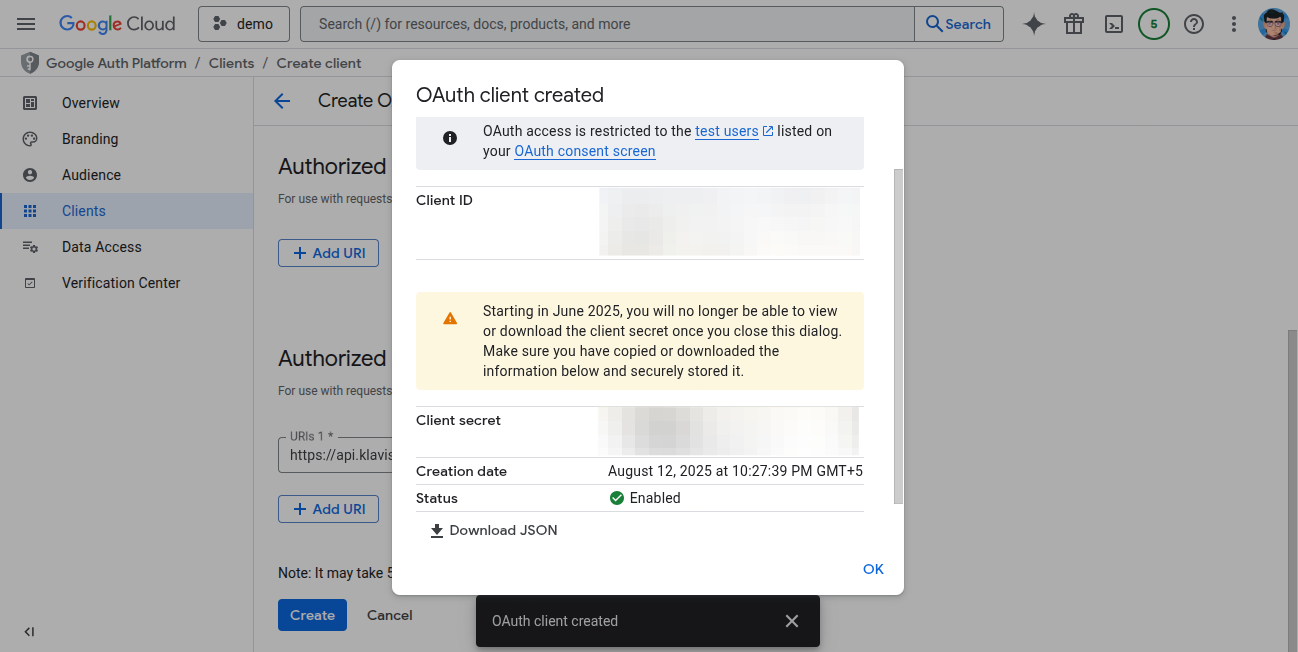
 15. Your **Client ID** and **Client Secret** will be displayed.
 ## Step 2: Request Scopes
Klavis Google Calendar MCP Server uses the following OAuth scopes:
`https://www.googleapis.com/auth/calendar.readonly`
`https://www.googleapis.com/auth/calendar.events`
1. Go to **OAuth consent screen**.
## Step 2: Request Scopes
Klavis Google Calendar MCP Server uses the following OAuth scopes:
`https://www.googleapis.com/auth/calendar.readonly`
`https://www.googleapis.com/auth/calendar.events`
1. Go to **OAuth consent screen**.
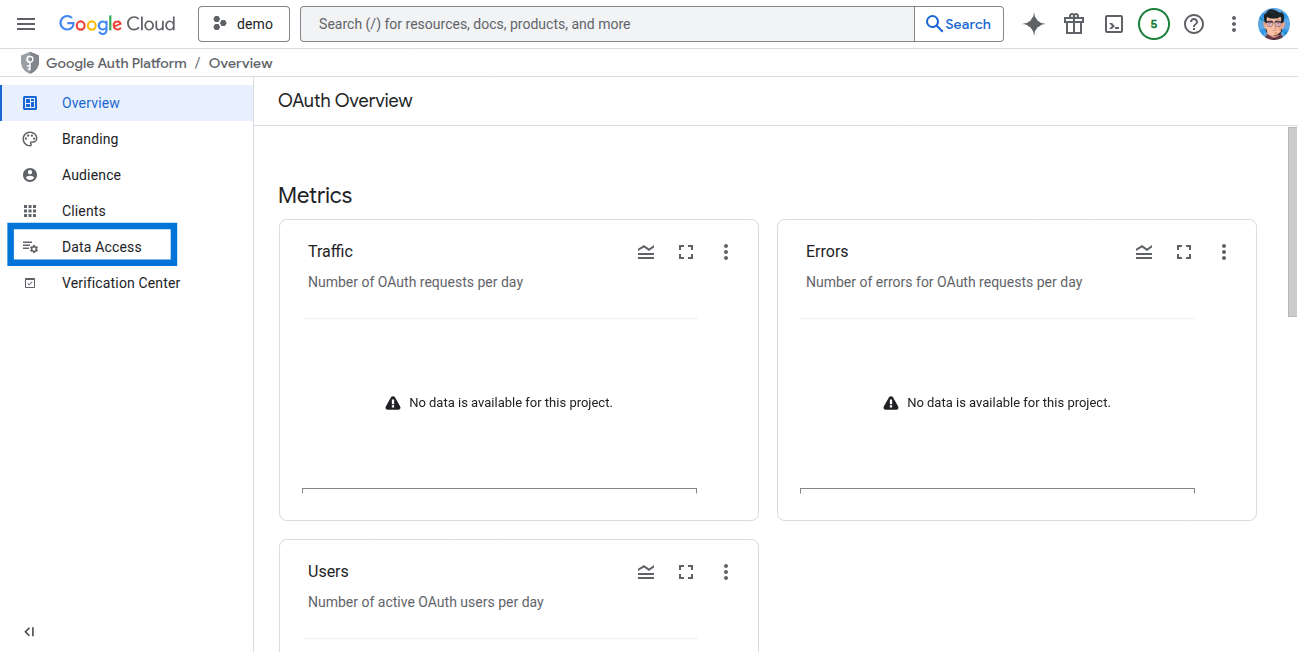
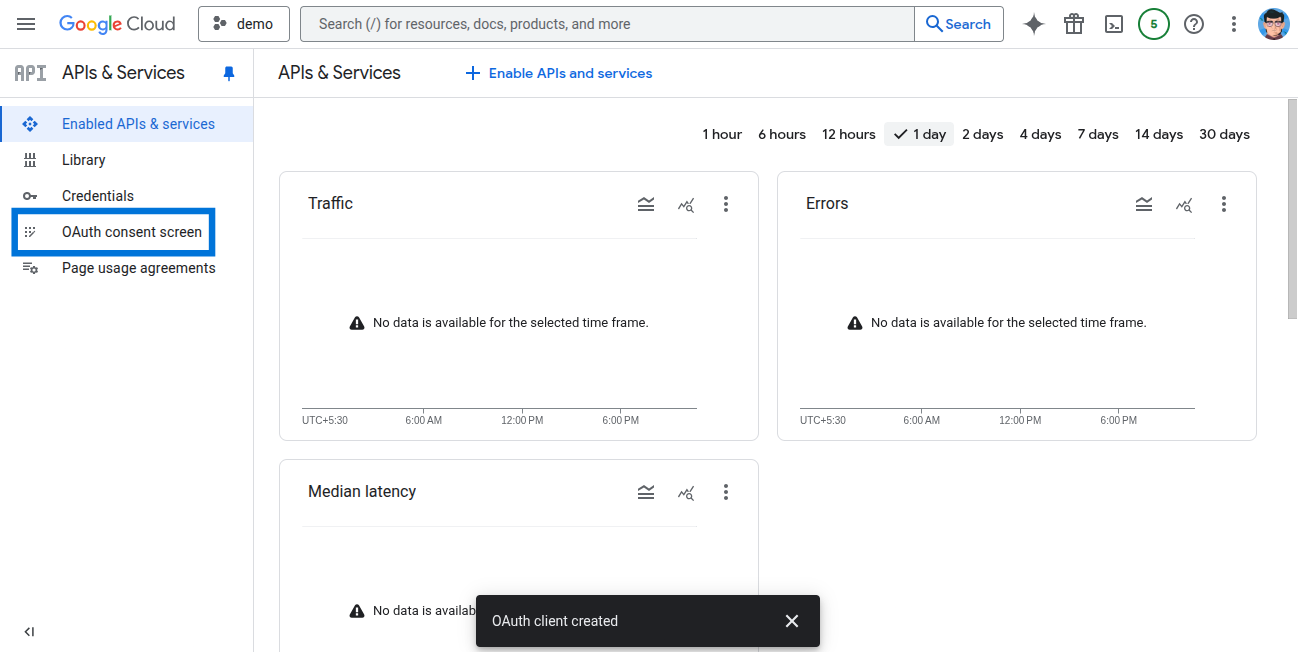 2. Click **Data Access**.
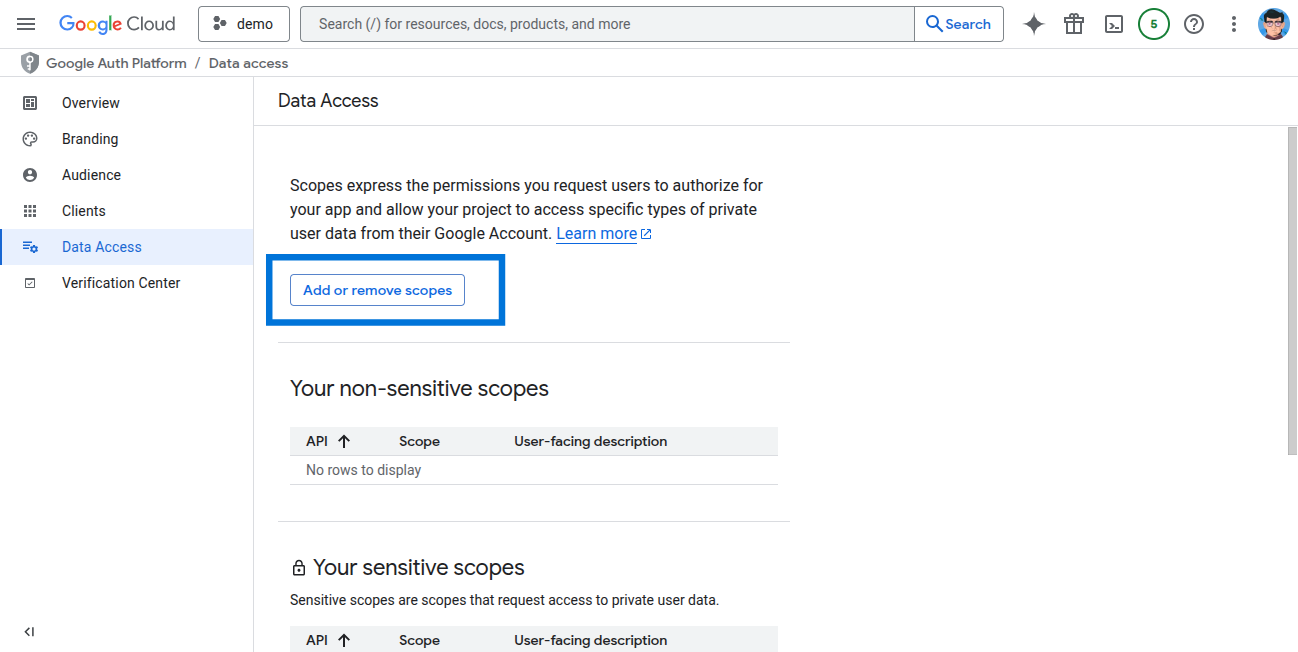
 3. Click **Add or Remove Scopes**.
 4. Enter the needed scopes and click **Update**.
You have successfully created a Google Calendar OAuth application! You now have your Client ID and Client Secret ready for integration with Klavis AI.
## (Optional) Step 3: White Labeling
White labeling allows you to customize the OAuth experience with your own branding instead of Klavis AI's.
If you want to use your own Google Calendar OAuth application with custom branding:
1. **Configure White Labeling**: Go to [https://www.klavis.ai/home/white-label](https://www.klavis.ai/home/white-label)
2. **Add Your Credentials**: Enter your Google Calendar **Client ID** and **Client Secret** from Step 1.
3. **Set Redirect URI**: Use `https://api.klavis.ai/oauth/gcalendar/callback` or your custom callback URL.
4. **Initiate OAuth**: Use your client ID when starting the OAuth flow:
```javascript without SDK theme={null}
// Example: Initiating Google Calendar OAuth with white-label
const authUrl = `https://api.klavis.ai/oauth/gcalendar/authorize?instance_id=${instanceId}&client_id=${yourClientId}`;
window.location.href = authUrl;
```
```typescript TypeScript SDK theme={null}
import { Klavis } from "@klavis/sdk";
const klavis = new Klavis({
apiKey: "YOUR_API_KEY"
});
// Example: Initiating Google Calendar OAuth with white-label
const oauthUrl = await klavis.mcpServer.getOAuthUrl({
serverName: Klavis.McpServerName.Gcalendar,
instanceId: instanceId,
clientId: yourClientId,
// redirectUri: YOUR_REDIRECT_URI,
// scope: "YOUR_SCOPES",
});
window.location.href = oauthUrl;
```
```python Python SDK theme={null}
import webbrowser
from klavis import Klavis
from klavis.types import McpServerName
klavis = Klavis(api_key="YOUR_API_KEY")
# Example: Initiating Google Calendar OAuth with white-label
oauth_url = klavis.mcp_server.get_oauth_url(
server_name=McpServerName.GCALENDAR,
instance_id=instance_id,
client_id=your_client_id,
# redirect_uri="YOUR_REDIRECT_URI",
# scope="YOUR_SCOPES"
)
# Open OAuth URL in user's default browser
webbrowser.open(oauth_url)
```
For detailed white labeling implementation and code examples, see our [OAuth & White Labeling guide](/docs/auth/white-label).
## Resources
* [Klavis OAuth & White Labeling Guide](/docs/auth/white-label)
* [Klavis White Label Dashboard](https://www.klavis.ai/home/white-label)
4. Enter the needed scopes and click **Update**.
You have successfully created a Google Calendar OAuth application! You now have your Client ID and Client Secret ready for integration with Klavis AI.
## (Optional) Step 3: White Labeling
White labeling allows you to customize the OAuth experience with your own branding instead of Klavis AI's.
If you want to use your own Google Calendar OAuth application with custom branding:
1. **Configure White Labeling**: Go to [https://www.klavis.ai/home/white-label](https://www.klavis.ai/home/white-label)
2. **Add Your Credentials**: Enter your Google Calendar **Client ID** and **Client Secret** from Step 1.
3. **Set Redirect URI**: Use `https://api.klavis.ai/oauth/gcalendar/callback` or your custom callback URL.
4. **Initiate OAuth**: Use your client ID when starting the OAuth flow:
```javascript without SDK theme={null}
// Example: Initiating Google Calendar OAuth with white-label
const authUrl = `https://api.klavis.ai/oauth/gcalendar/authorize?instance_id=${instanceId}&client_id=${yourClientId}`;
window.location.href = authUrl;
```
```typescript TypeScript SDK theme={null}
import { Klavis } from "@klavis/sdk";
const klavis = new Klavis({
apiKey: "YOUR_API_KEY"
});
// Example: Initiating Google Calendar OAuth with white-label
const oauthUrl = await klavis.mcpServer.getOAuthUrl({
serverName: Klavis.McpServerName.Gcalendar,
instanceId: instanceId,
clientId: yourClientId,
// redirectUri: YOUR_REDIRECT_URI,
// scope: "YOUR_SCOPES",
});
window.location.href = oauthUrl;
```
```python Python SDK theme={null}
import webbrowser
from klavis import Klavis
from klavis.types import McpServerName
klavis = Klavis(api_key="YOUR_API_KEY")
# Example: Initiating Google Calendar OAuth with white-label
oauth_url = klavis.mcp_server.get_oauth_url(
server_name=McpServerName.GCALENDAR,
instance_id=instance_id,
client_id=your_client_id,
# redirect_uri="YOUR_REDIRECT_URI",
# scope="YOUR_SCOPES"
)
# Open OAuth URL in user's default browser
webbrowser.open(oauth_url)
```
For detailed white labeling implementation and code examples, see our [OAuth & White Labeling guide](/docs/auth/white-label).
## Resources
* [Klavis OAuth & White Labeling Guide](/docs/auth/white-label)
* [Klavis White Label Dashboard](https://www.klavis.ai/home/white-label)