> ## Documentation Index
> Fetch the complete documentation index at: https://www.klavis.ai/docs/llms.txt
> Use this file to discover all available pages before exploring further.

# Create Your First MCP Server

## Quick Start Guide

Create your first MCP server in 10 seconds using Gmail as an example.

<Steps>
  <Step title="Create from Klavis Dashboard">
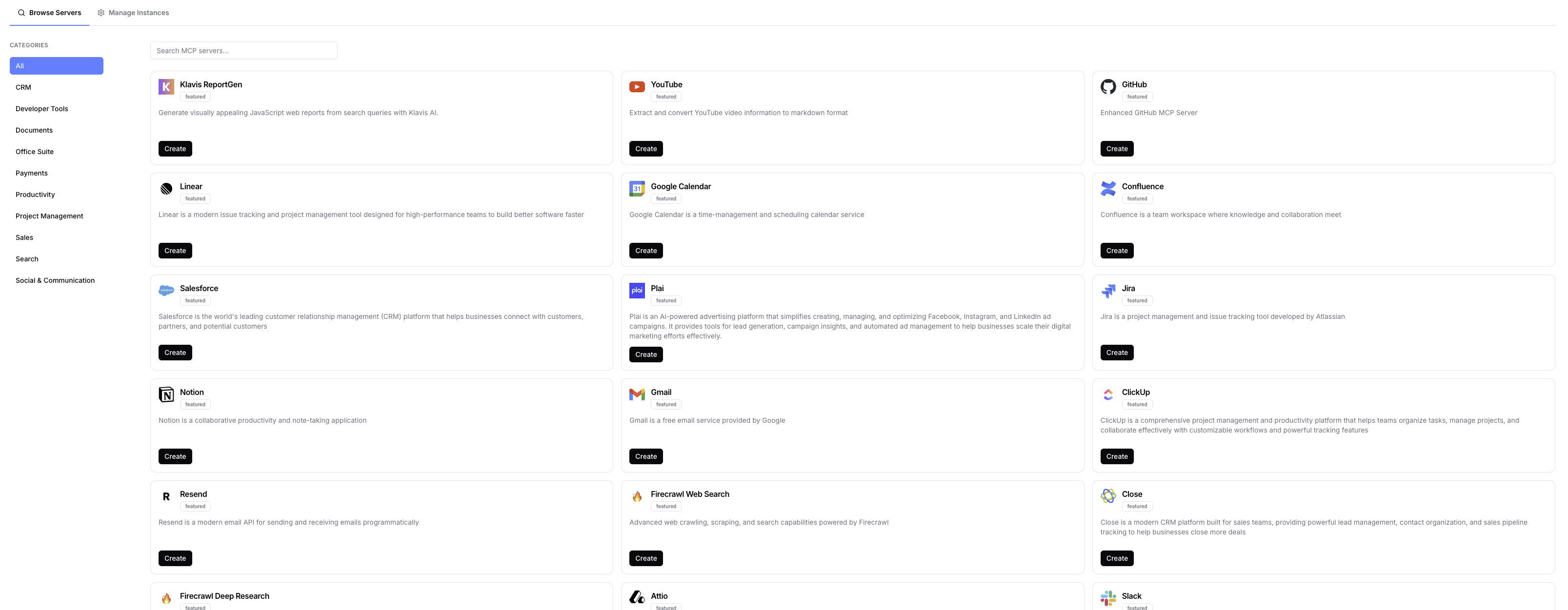
    Navigate to the [Klavis Dashboard](https://www.klavis.ai/home) and click **"MCP Server"** in the left sidebar.

    Find the MCP server you like, here we use Gmail one as example.

    <img src="https://mintcdn.com/klavisai/TEzGHGg1v0ZnLKee/images/mcp-server.png?fit=max&auto=format&n=TEzGHGg1v0ZnLKee&q=85&s=b3cf4f3459e5356769a8fbae375b9bef" alt="Klavis MCP Servers - No Code Creation" width="3214" height="1251" data-path="images/mcp-server.png" />

    <Note>
      You'll get a server URL and OAuth URL for authentication. Keep these handy for the next steps.
    </Note>
  </Step>

  <Step title="Complete OAuth Authentication">
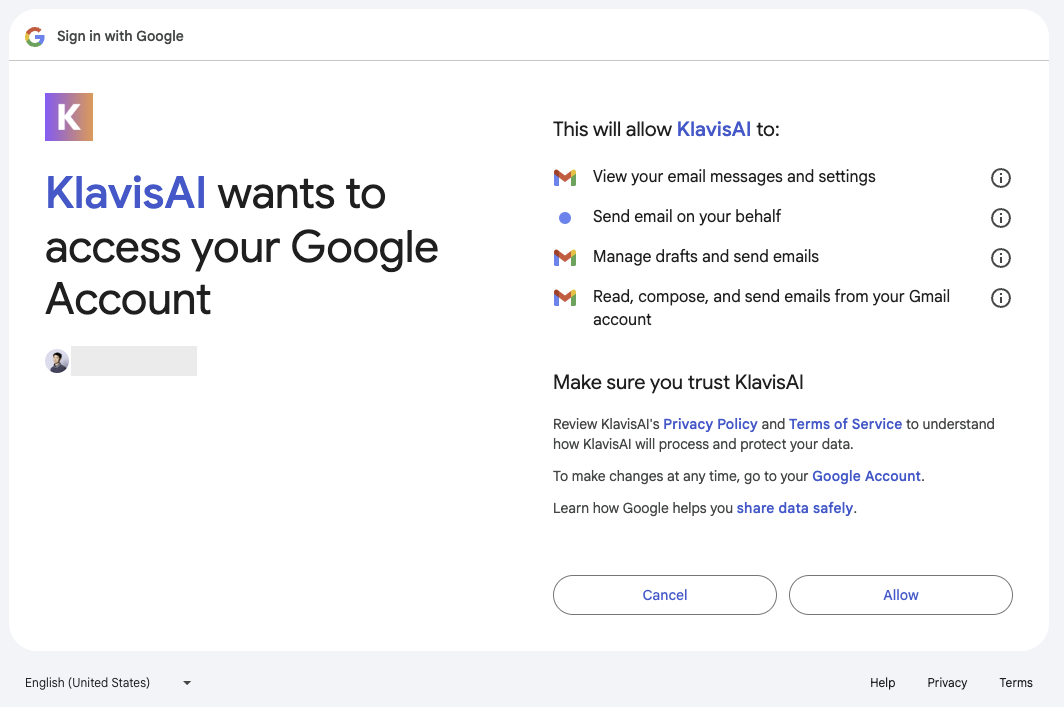
    Once you hit the create button, it will automatically redirect you to the OAuth flow.

    <img src="https://mintcdn.com/klavisai/TEzGHGg1v0ZnLKee/images/knowledge-base/onboarding/gmail_oauth.png?fit=max&auto=format&n=TEzGHGg1v0ZnLKee&q=85&s=854d3f0ccc0d00de606e2b8ca311a8c2" alt="Gmail OAuth Flow" width="1064" height="707" data-path="images/knowledge-base/onboarding/gmail_oauth.png" />

    <Accordion title="🔐 Gmail OAuth Flow">
      * Sign in to your Google account
      * Grant Gmail permissions to Klavis
      * You'll be redirected back automatically
      * Your MCP server is now ready to use
    </Accordion>

    <Check>Once OAuth is complete, your Gmail MCP server can read, send, and manage your emails.</Check>
  </Step>
</Steps>

<iframe width="725" height="450" src="https://www.youtube.com/embed/njV6yg8I7uo" title="YouTube video player" frameBorder="0" allow="accelerometer; autoplay; clipboard-write; encrypted-media; gyroscope; picture-in-picture; web-share" allowFullScreen />

<Check>**Congratulations!** You've successfully created your first MCP server.</Check>

## Next Steps

Ready to start using it? Continue to [Use Your First MCP Server](/knowledge-base/onboarding/use-your-first-mcp-server).