> ## Documentation Index
> Fetch the complete documentation index at: https://www.klavis.ai/docs/llms.txt
> Use this file to discover all available pages before exploring further.

# Use Your First MCP Server

## Quick Start Guide

Use your MCP server in OpenAI Playground (for free) in 2 simple steps.

<Steps>
  <Step title="Choose Your MCP Server">
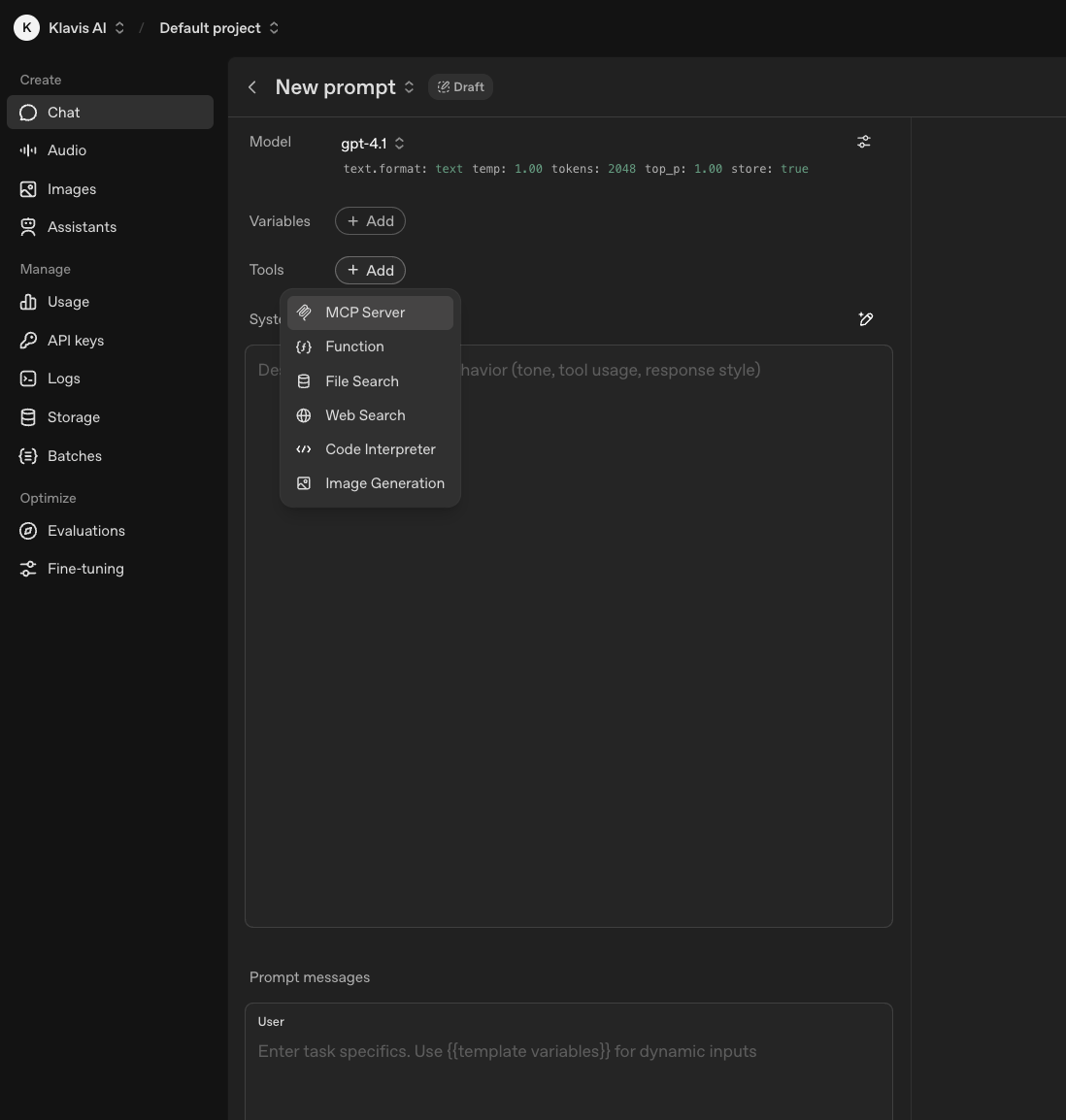
    Go to [OpenAI Playground](https://platform.openai.com/chat/edit?models=gpt-4.1), then navigate to **Tools** → **Add** → **MCP Server**.

    <img src="https://mintcdn.com/klavisai/TEzGHGg1v0ZnLKee/images/knowledge-base/onboarding/step1_choose_mcp_server.png?fit=max&auto=format&n=TEzGHGg1v0ZnLKee&q=85&s=83ff74135ff51e7f214c7fe418a9bc23" alt="Choose MCP Server" width="1098" height="1154" data-path="images/knowledge-base/onboarding/step1_choose_mcp_server.png" />
  </Step>

  <Step title="Configure MCP Server">
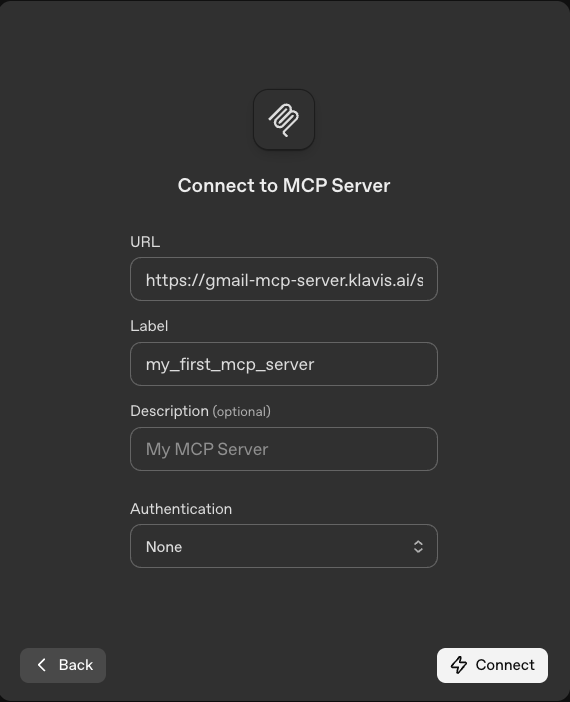
    Enter your server configuration details and connect.

    <img src="https://mintcdn.com/klavisai/TEzGHGg1v0ZnLKee/images/knowledge-base/onboarding/step2_config_mcp_Server.png?fit=max&auto=format&n=TEzGHGg1v0ZnLKee&q=85&s=cc2e048c31107a8ab80fbd300cd3e8c2" alt="Configure MCP Server" width="570" height="702" data-path="images/knowledge-base/onboarding/step2_config_mcp_Server.png" />

    <Note>
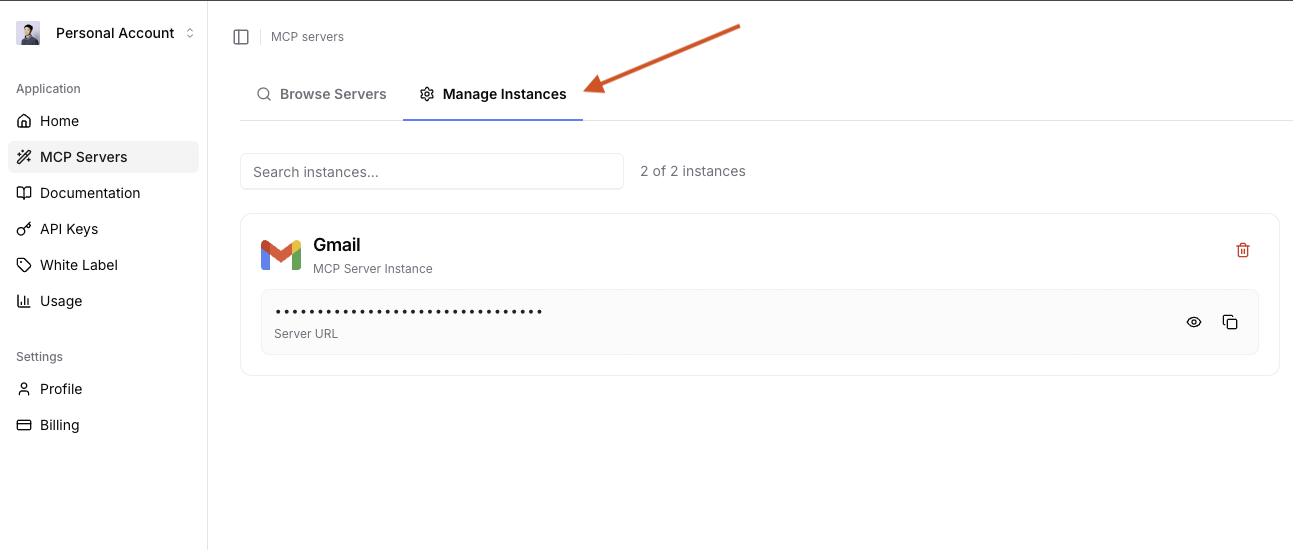
      You can go to [Klavis Dashboard](https://www.klavis.ai/home) → **MCP Server** → **Manage Instances** to get your server URL if you forgot.

      <img src="https://mintcdn.com/klavisai/TEzGHGg1v0ZnLKee/images/knowledge-base/onboarding/klavis_manage_instances.png?fit=max&auto=format&n=TEzGHGg1v0ZnLKee&q=85&s=85096efaeb6b7e438a8ce40830957be1" alt="Klavis Manage Instances" width="1293" height="550" data-path="images/knowledge-base/onboarding/klavis_manage_instances.png" />
    </Note>
  </Step>
</Steps>

<iframe width="725" height="450" src="https://www.youtube.com/embed/x2Aof20XGxo" title="YouTube video player" frameBorder="0" allow="accelerometer; autoplay; clipboard-write; encrypted-media; gyroscope; picture-in-picture; web-share" allowFullScreen />

<Check>**Congratulations!** You've successfully used your first MCP server.</Check>

## What You Can Do with Gmail MCP Server

<CardGroup cols={2}>
  <Card title="Read Emails" icon="envelope-open">
    Fetch and analyze your latest emails with AI assistance
  </Card>

  <Card title="Send Emails" icon="paper-plane">
    Compose and send emails through AI agents
  </Card>

  <Card title="Search Emails" icon="magnifying-glass">
    Find specific emails using natural language queries
  </Card>

  <Card title="Manage Labels" icon="tags">
    Organize emails with labels and folders automatically
  </Card>
</CardGroup>