> ## Documentation Index
> Fetch the complete documentation index at: https://www.klavis.ai/docs/llms.txt
> Use this file to discover all available pages before exploring further.
# Windsurf
> Connect Strata with Windsurf IDE in minutes and supercharge your AI coding experience
 ## Quick Setup Guide
Navigate to the [Klavis home page](https://www.klavis.ai/home) and click **"MCP Server"** in the left sidebar. You will see a list of MCP servers available in Klavis.
## Quick Setup Guide
Navigate to the [Klavis home page](https://www.klavis.ai/home) and click **"MCP Server"** in the left sidebar. You will see a list of MCP servers available in Klavis.
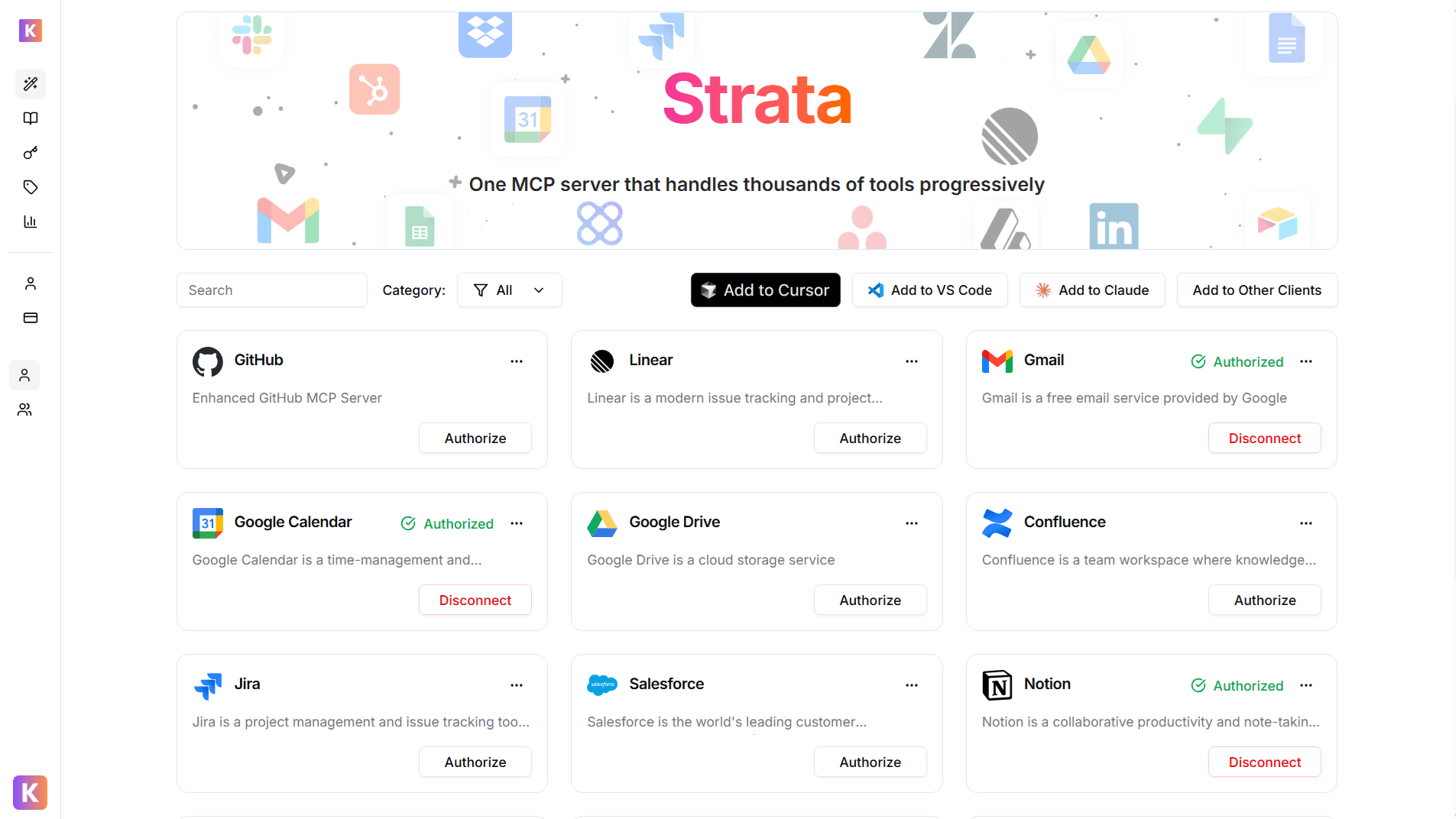 Click the **"Authorize"** button next to your chosen server. Once server is authorized, you will see **Green Checkmark** status.
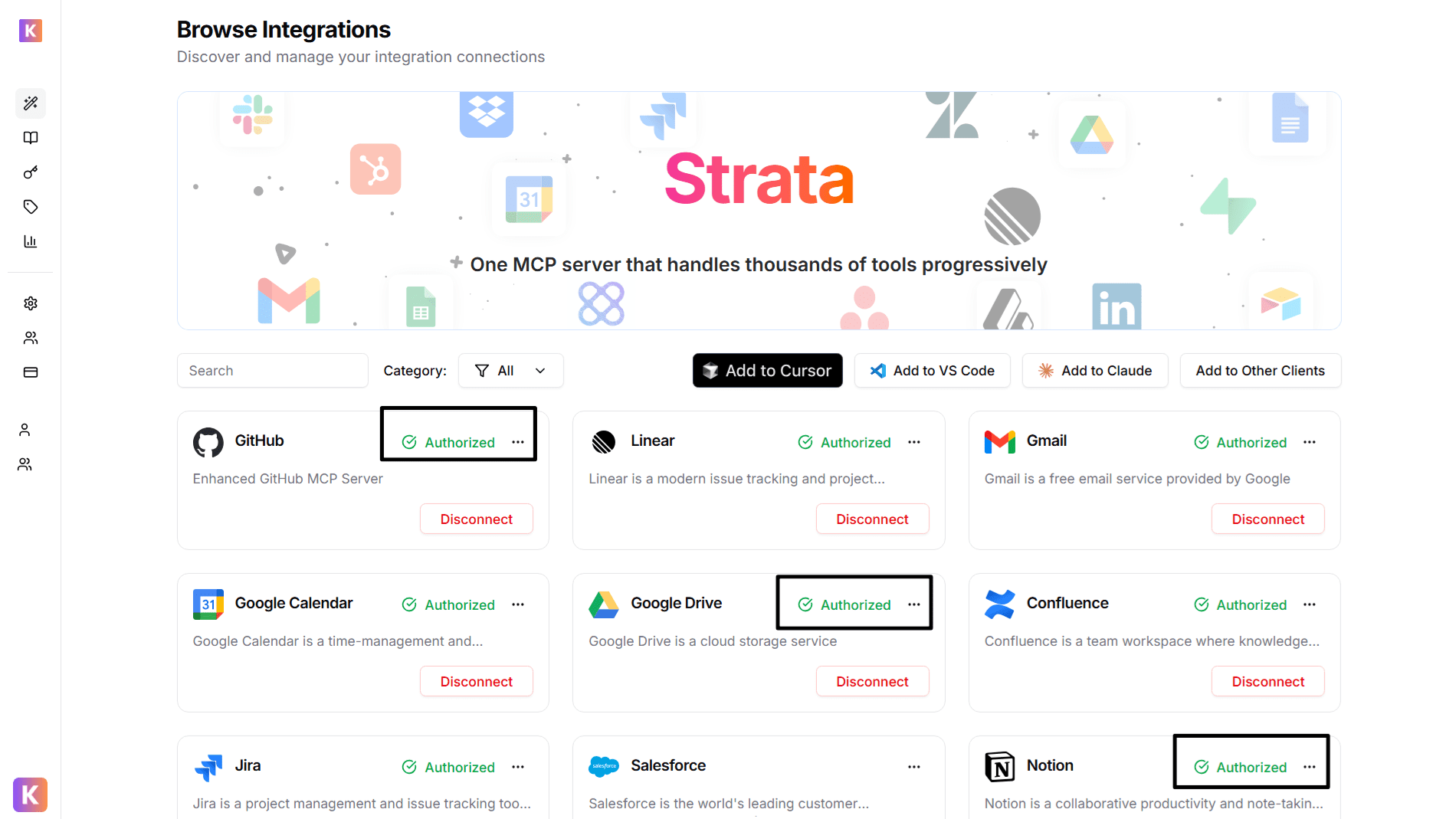 You can authorize one or more servers to use with Strata
From Klavis Dashboard, click **"Add to Other Clients"** button to get your Strata Server URL.
You can authorize one or more servers to use with Strata
From Klavis Dashboard, click **"Add to Other Clients"** button to get your Strata Server URL.
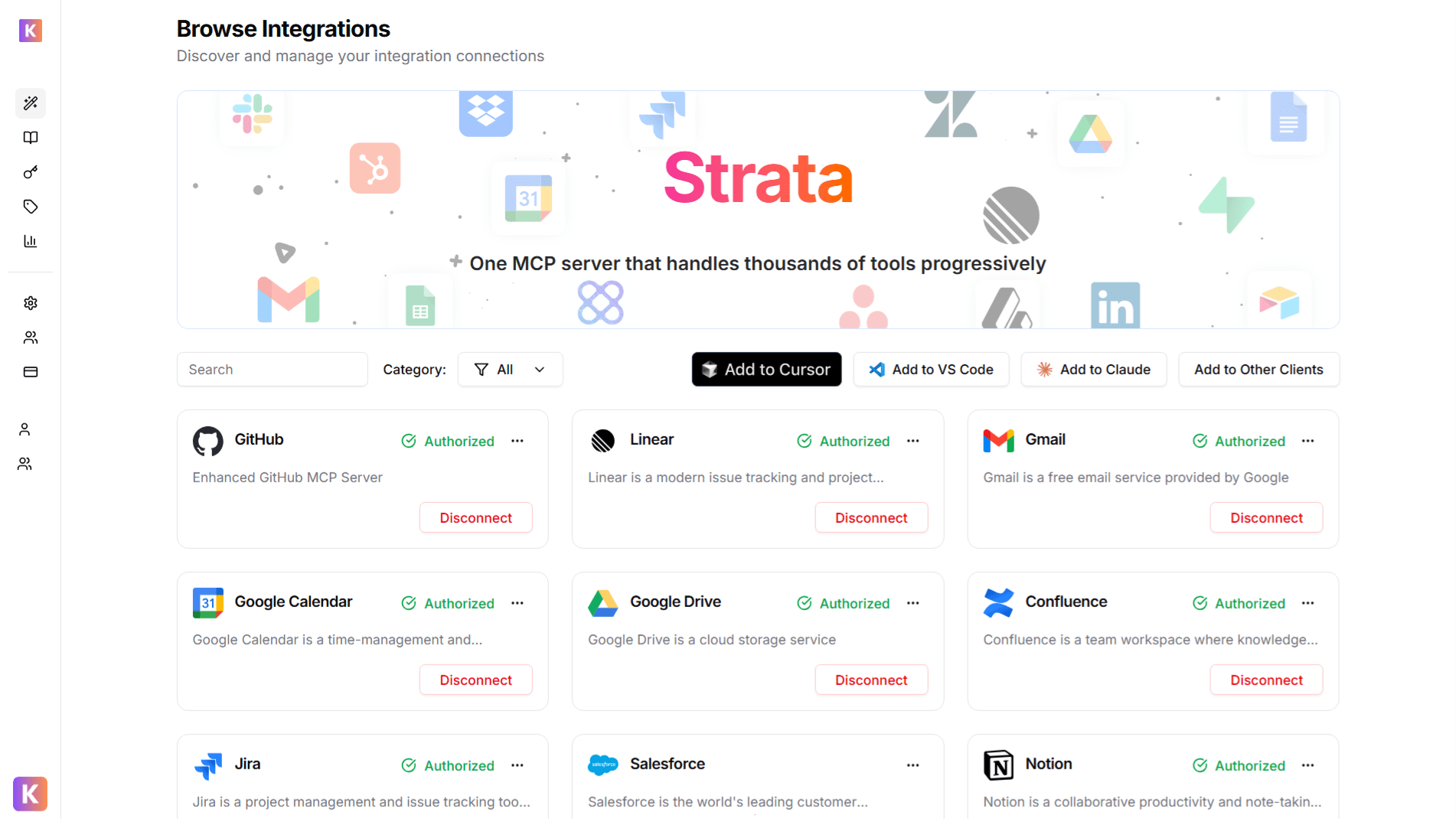 **Copy** the strata URL to clipboard - you'll need this in the next step.
 * Automatically redirected to OAuth authorization
* Sign in to your account (GitHub, Google, Slack, etc.)
* Grant necessary permissions
* Redirected back to Klavis automatically
* Prompted to enter an API key
* Follow service-specific instructions to generate key
* Paste key in the provided field
* Click **"Save"** to continue
Copy Your Server URL, open Windsurf IDE settings:
* **macOS**: `Cmd + ,` or **Windsurf > Settings > Advanced Settings**
* **Windows/Linux**: `Ctrl + ,` or **Windsurf > Settings > Advanced Settings**
* Automatically redirected to OAuth authorization
* Sign in to your account (GitHub, Google, Slack, etc.)
* Grant necessary permissions
* Redirected back to Klavis automatically
* Prompted to enter an API key
* Follow service-specific instructions to generate key
* Paste key in the provided field
* Click **"Save"** to continue
Copy Your Server URL, open Windsurf IDE settings:
* **macOS**: `Cmd + ,` or **Windsurf > Settings > Advanced Settings**
* **Windows/Linux**: `Ctrl + ,` or **Windsurf > Settings > Advanced Settings**
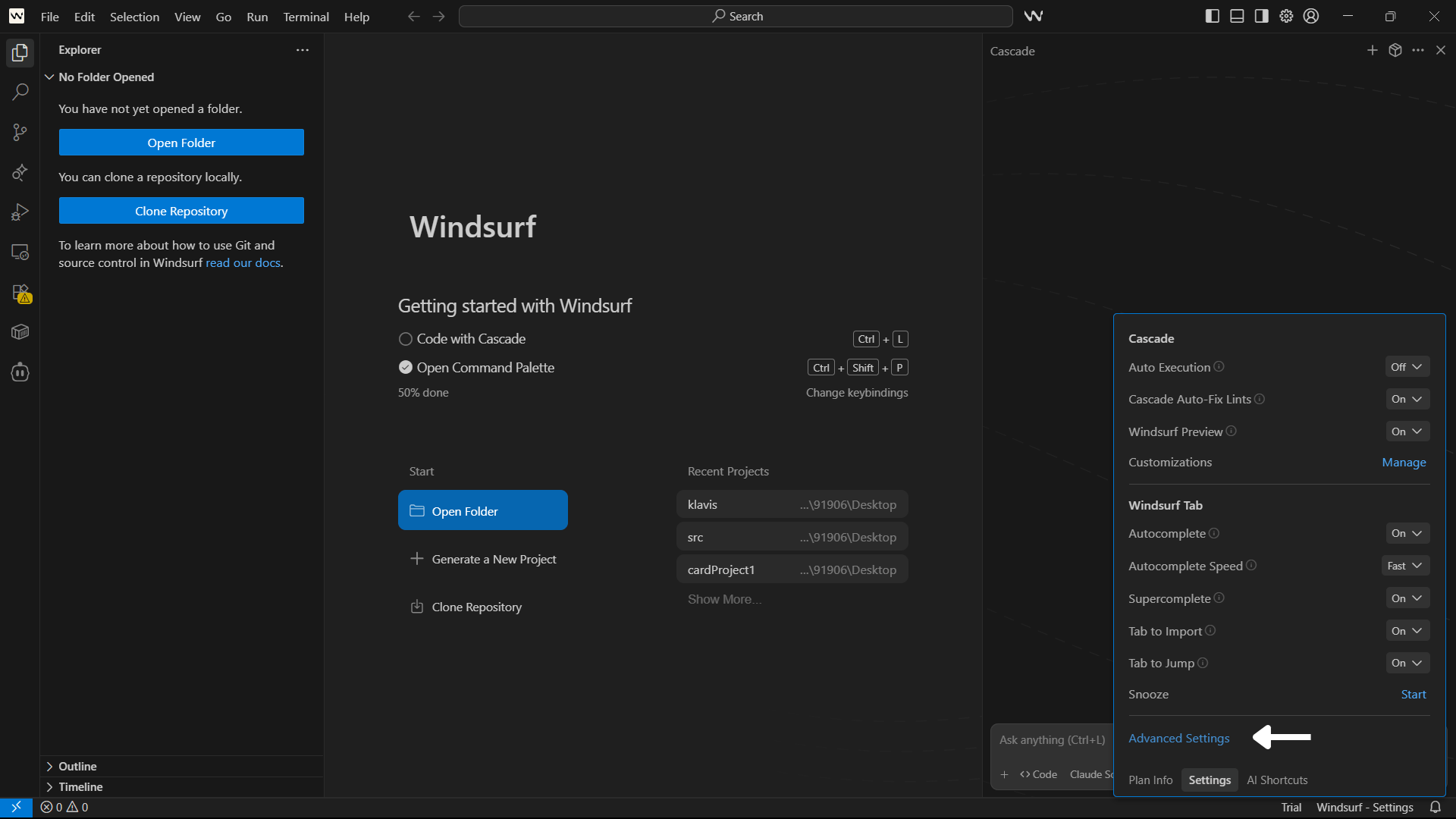 Navigate to **Cascade** and click **Manage MCPs** > **View raw config**.
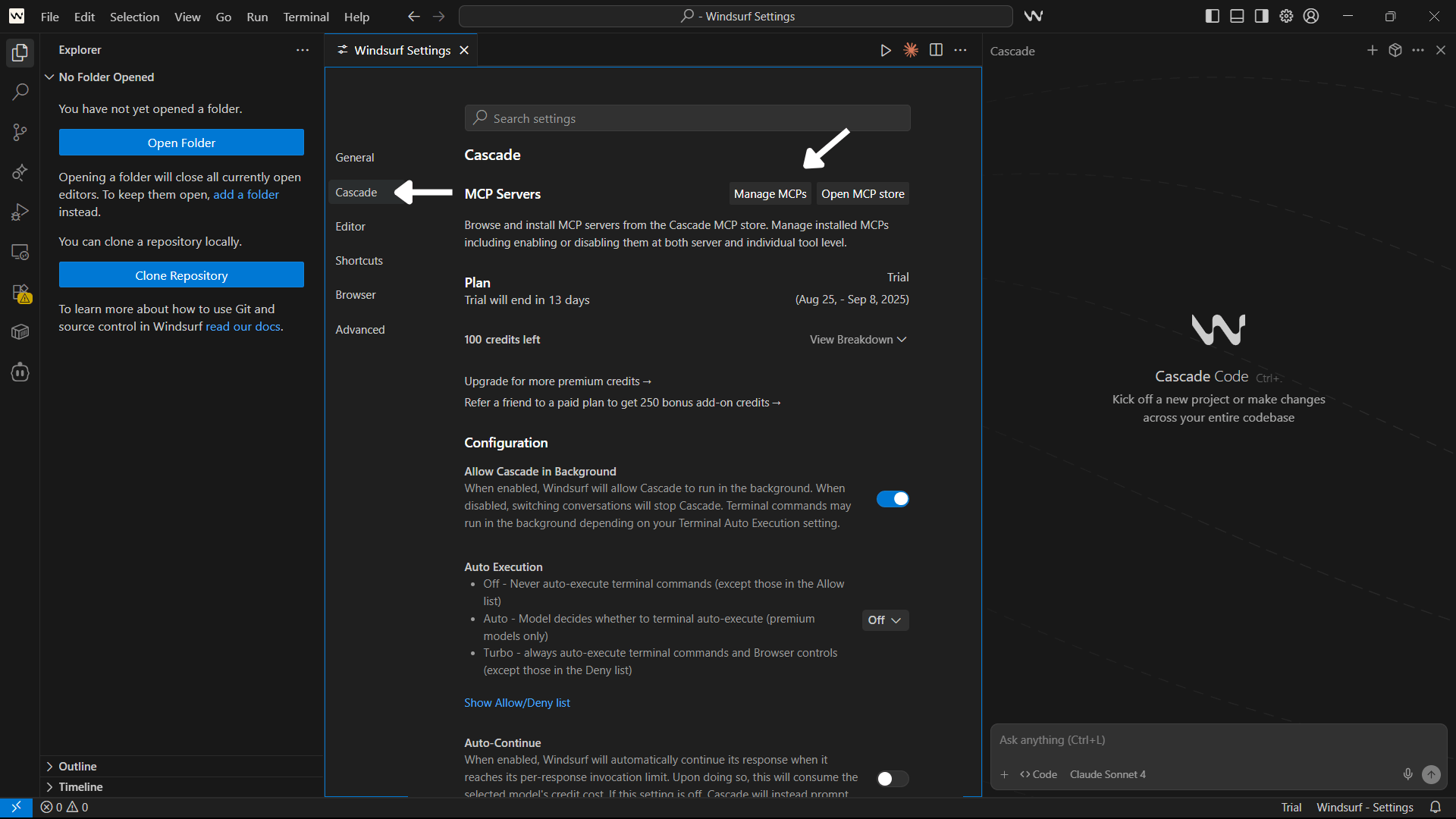
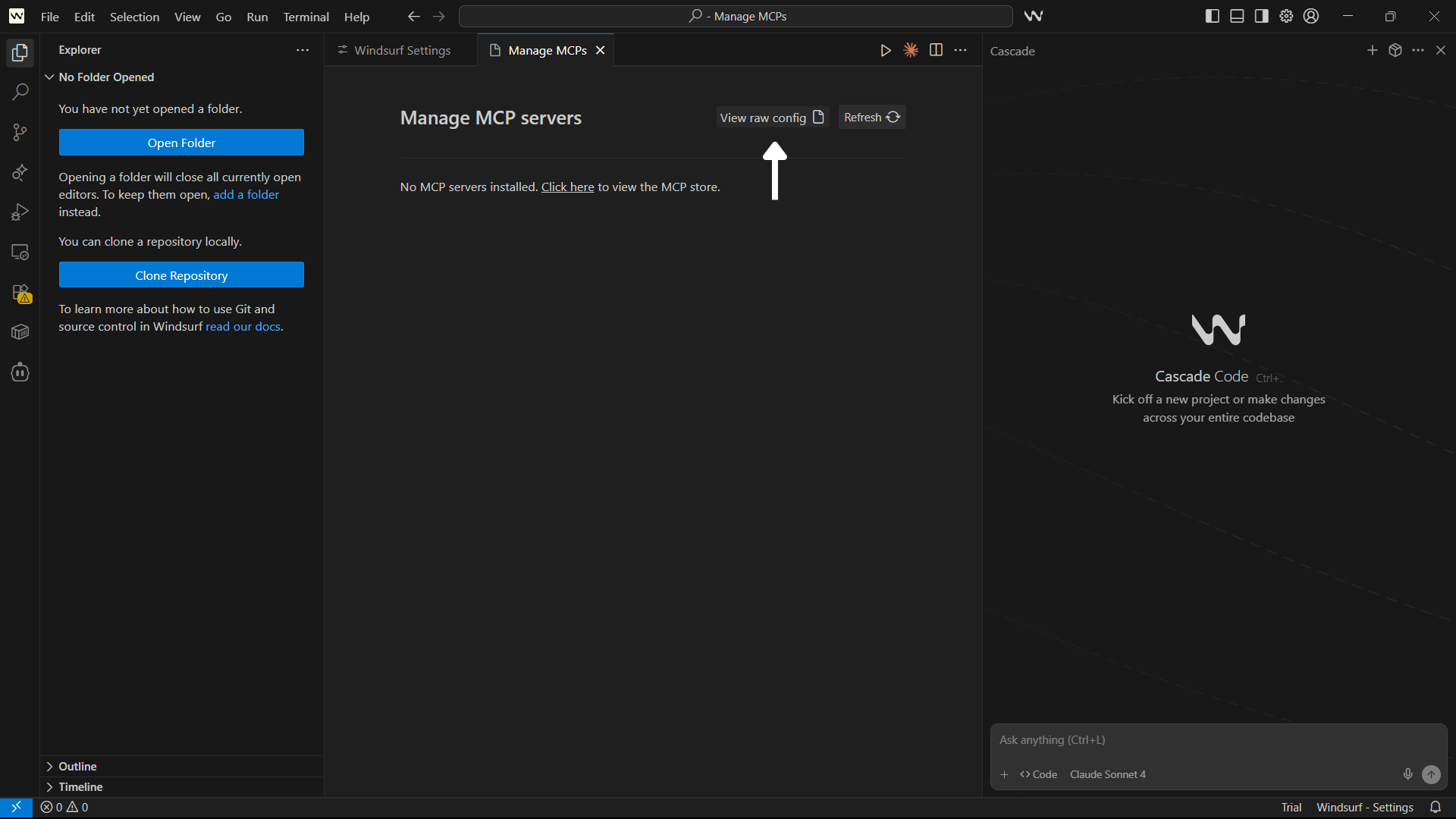 Paste Your Server URL to **mcp\_config.json** file like the screenshot below.
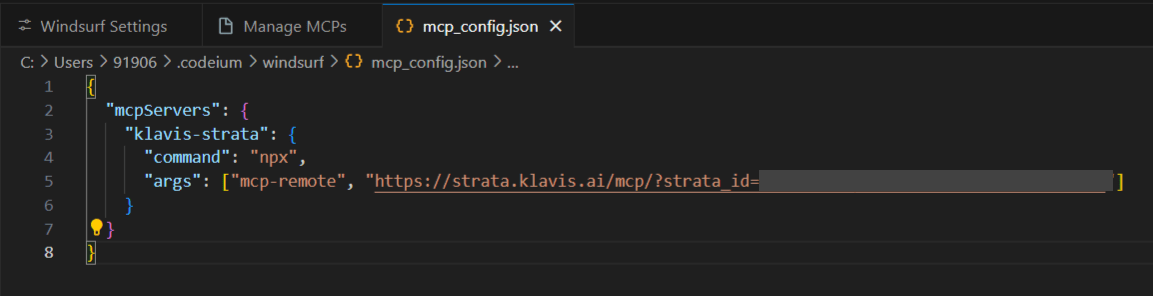 You can add **Single** MCP Server URL directly here as well:
1. Navigate to **Target Server** and click **Three Dots** next to your server
2. Tap **Show Individual Server URL** and copy the URL
3. Paste this URL in Windsurf settings as described above
You can add **Single** MCP Server URL directly here as well:
1. Navigate to **Target Server** and click **Three Dots** next to your server
2. Tap **Show Individual Server URL** and copy the URL
3. Paste this URL in Windsurf settings as described above
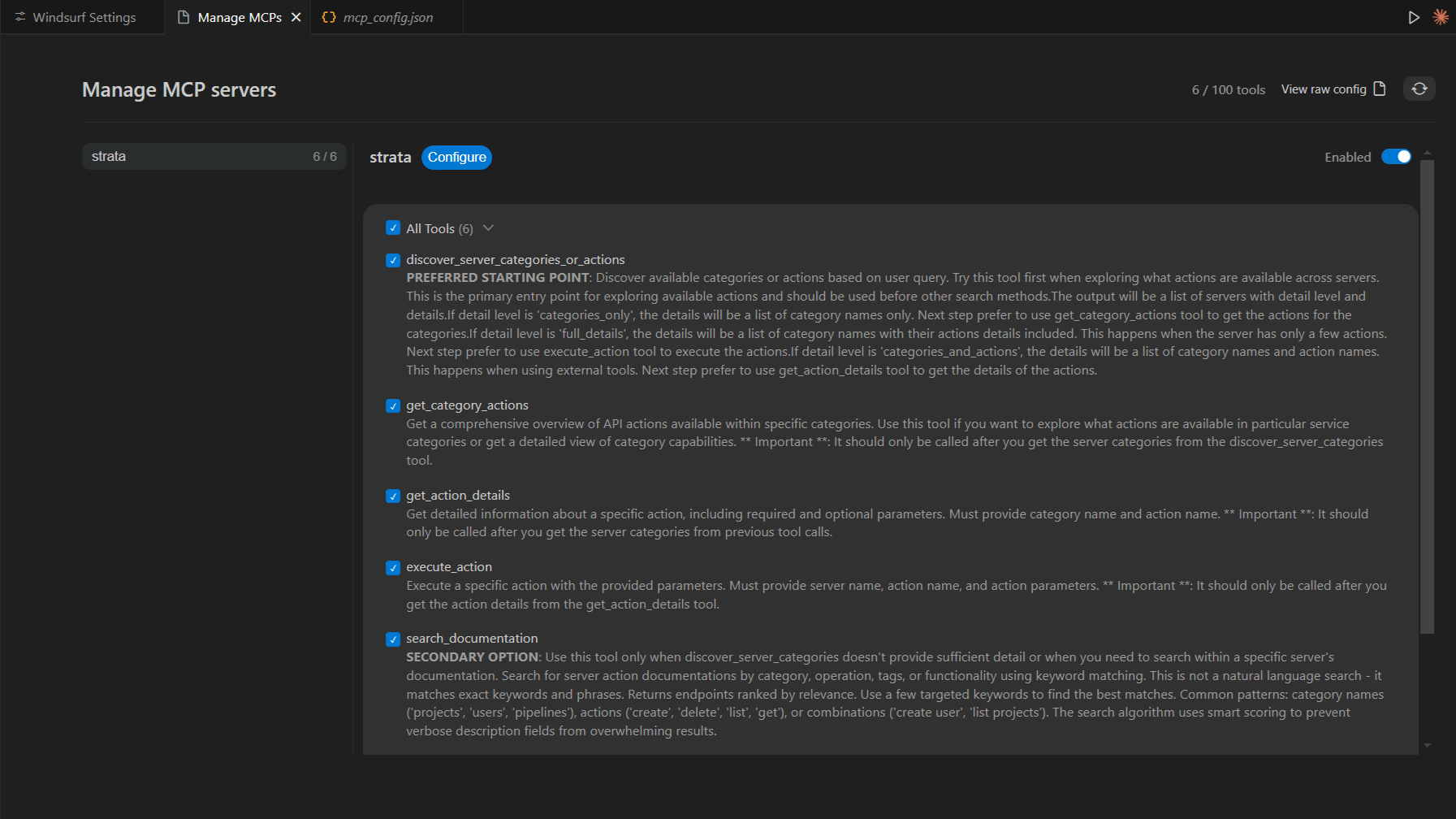 📋 **Reopen Windsurf Settings** to apply the new configuration
 Open Windsurf Chat (`Cmd/Ctrl + Shift + L`) and start using natural language:
```text GitHub theme={null}
"Create a new issue titled 'Add dark mode' with priority label"
```
```text Slack theme={null}
"Send a message to #general: 'Standup meeting in 5 minutes!'"
```
```text Gmail theme={null}
"Send email to john@company.com about project update"
```
```text Notion theme={null}
"Create a new page called 'Meeting Notes' with today's date"
```
🎯 Windsurf Chat automatically detects when to use **Strata** based on context - no need to specify explicitly!
You're all set! Your **Strata** MCP server is now integrated with Windsurf IDE.
## Troubleshooting
* Double-check your Server URL for typos
* Ensure stable internet connection
* Verify authentication in Klavis dashboard
* Check Windsurf IDE logs for error messages
* Try completely restarting Windsurf IDE
* Re-authenticate in the Klavis dashboard
* Check if your OAuth tokens have expired
* Verify API key permissions (for API key services)
* Ensure you've granted all necessary permissions
* Limit the number of active MCP servers
* Check your internet connection speed
* Restart Windsurf IDE periodically
* Contact support if issues persist
## Need Help?
Join our Discord for community support and discussions
Contact our technical support team for assistance
***
Open Windsurf Chat (`Cmd/Ctrl + Shift + L`) and start using natural language:
```text GitHub theme={null}
"Create a new issue titled 'Add dark mode' with priority label"
```
```text Slack theme={null}
"Send a message to #general: 'Standup meeting in 5 minutes!'"
```
```text Gmail theme={null}
"Send email to john@company.com about project update"
```
```text Notion theme={null}
"Create a new page called 'Meeting Notes' with today's date"
```
🎯 Windsurf Chat automatically detects when to use **Strata** based on context - no need to specify explicitly!
You're all set! Your **Strata** MCP server is now integrated with Windsurf IDE.
## Troubleshooting
* Double-check your Server URL for typos
* Ensure stable internet connection
* Verify authentication in Klavis dashboard
* Check Windsurf IDE logs for error messages
* Try completely restarting Windsurf IDE
* Re-authenticate in the Klavis dashboard
* Check if your OAuth tokens have expired
* Verify API key permissions (for API key services)
* Ensure you've granted all necessary permissions
* Limit the number of active MCP servers
* Check your internet connection speed
* Restart Windsurf IDE periodically
* Contact support if issues persist
## Need Help?
Join our Discord for community support and discussions
Contact our technical support team for assistance
***