Connectto Close, ClickUp, Doc2markdown MCP Servers
Create powerful AI workflows by connecting multiple MCP servers including Close, ClickUp, Doc2markdown for enhanced automation capabilities in Klavis AI.

Close
Close is a modern CRM platform built for sales teams, providing powerful lead management, contact organization, and sales pipeline tracking to help businesses close more deals
Available Tools:
- close_create_lead
- close_get_lead
- close_search_leads
- +20 more tools

ClickUp
ClickUp is a comprehensive project management and productivity platform that helps teams organize tasks, manage projects, and collaborate effectively with customizable workflows and powerful tracking features
Available Tools:
- clickup_get_teams
- clickup_get_workspaces
- clickup_get_spaces
- +18 more tools

Doc2markdown
Convert any file to markdown using markitdown
Available Tools:
- convert_document_to_markdown
Connect Using Klavis UI
The easiest way to connect these MCP servers to your AI clients
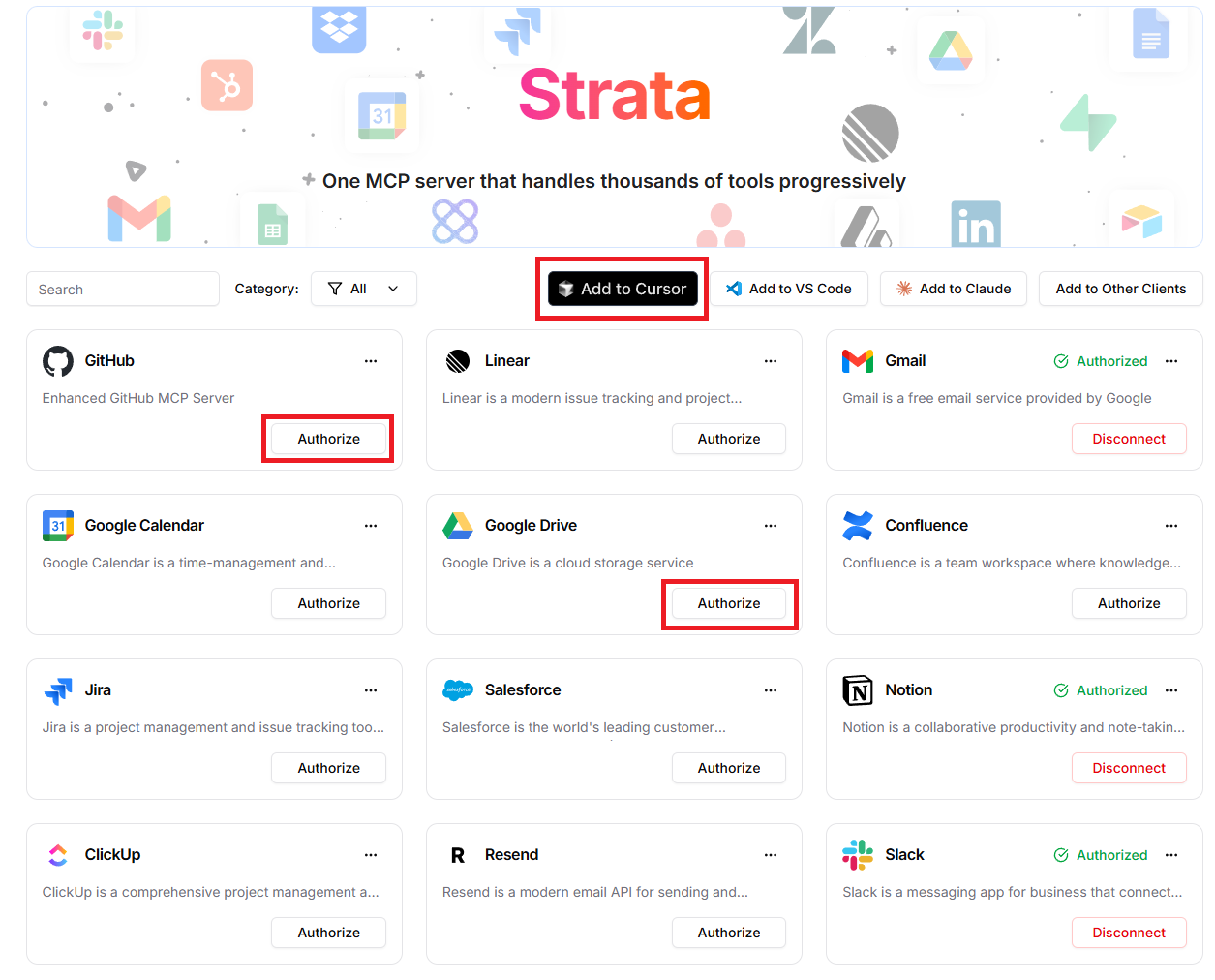
Navigate to Klavis Home
Visit the Klavis home page and you will see a list of MCP servers available in Klavis.
Authorize Your Servers
Click the "Authorize" button next to your chosen servers. Once servers are authorized, you will see a Green Checkmark status.
Add to Your AI Client
Click "Add to Cursor", "Add to VS Code", "Add to Claude" or "Add to Other Clients" button to connect the MCP server to your preferred AI client.
Connect Using API
Programmatically connect your AI agents to these MCP servers
Get Your API Key
Sign up for Klavis AI to access our MCP server management platform and get your API key.
Configure Connections
Use the code examples below to add your desired MCP servers to your AI client and configure authentication settings.
Test & Deploy
Verify your connections work correctly and start using your enhanced AI capabilities.
Integrate in minutes, Scale to millions
View Documentationimport os
import asyncio
from klavis import Klavis
from klavis.types import McpServerName
from langchain_mcp_adapters.client import MultiServerMCPClient
from langgraph.prebuilt import create_react_agent
from langchain_openai import ChatOpenAI
# Initialize clients
klavis_client = Klavis(api_key=os.getenv("KLAVIS_API_KEY"))
llm = ChatOpenAI(model="gpt-4o-mini", api_key=os.getenv("OPENAI_API_KEY"))
# Create strata server with all MCP servers
response = klavis_client.mcp_server.create_strata_server(
servers=[McpServerName.CLOSE, McpServerName.CLICKUP, McpServerName.DOC2MARKDOWN],
user_id="1234"
)
mcp_server_url = response.strata_server_url
mcp_client = MultiServerMCPClient({
"strata": {
"transport": "streamable_http",
"url": mcp_server_url
}
})
tools = asyncio.run(mcp_client.get_tools())
agent = create_react_agent(
model=llm,
tools=tools,
)
response = asyncio.run(agent.ainvoke({
"messages": [{"role": "user", "content": "Your query here"}]
}))Code Examples for claude
import os
from anthropic import Anthropic
from klavis import Klavis
from klavis.types import McpServerName, ToolFormat

# Initialize clients
anthropic_client = Anthropic(api_key=os.getenv("ANTHROPIC_API_KEY"))
klavis_client = Klavis(api_key=os.getenv("KLAVIS_API_KEY"))

# Constants
CLAUDE_MODEL = "claude-3-5-sonnet-20241022"
user_message = "Your message here"

# Create strata server with all MCP servers
response = klavis_client.mcp_server.create_strata_server(
    servers=[McpServerName.CLOSE, McpServerName.CLICKUP, McpServerName.DOC2MARKDOWN],
    user_id="1234"
)

mcp_server_url = response.strata_server_url

# Get tools from the strata server
mcp_tools = klavis_client.mcp_server.list_tools(
    server_url=mcp_server_url,
    format=ToolFormat.ANTHROPIC,
)

messages = [
    {"role": "user", "content": user_message}
]

response = anthropic_client.messages.create(
    model=CLAUDE_MODEL,
    max_tokens=4000,
    messages=messages,
    tools=mcp_tools.tools
)
import Anthropic from '@anthropic-ai/sdk';
import { KlavisClient, Klavis } from 'klavis';
// Initialize clients
const anthropic = new Anthropic({ apiKey: process.env.ANTHROPIC_API_KEY });
const klavisClient = new KlavisClient({ apiKey: process.env.KLAVIS_API_KEY });
const CLAUDE_MODEL = "claude-3-5-sonnet-20241022";
const userMessage = "Your message here";
// Create strata server with all MCP servers
const strataResponse = await klavisClient.mcpServer.createStrataServer({
servers: [Klavis.McpServerName.Close, Klavis.McpServerName.ClickUp, Klavis.McpServerName.Doc2markdown],
userId: "1234"
});
const mcpServerUrl = strataResponse.strataServerUrl;
// Get tools from the strata server
const mcpTools = await klavisClient.mcpServer.listTools({
serverUrl: mcpServerUrl,
format: Klavis.ToolFormat.Anthropic,
});
const response = await anthropic.messages.create({
model: CLAUDE_MODEL,
max_tokens: 4000,
messages: [{ role: 'user', content: userMessage }],
tools: mcpTools.tools,
});Code Examples for openai
import os
from openai import OpenAI
from klavis import Klavis
from klavis.types import McpServerName, ToolFormat

# Initialize clients
openai_client = OpenAI(api_key=os.getenv("OPENAI_API_KEY"))
klavis_client = Klavis(api_key=os.getenv("KLAVIS_API_KEY"))

# Constants
OPENAI_MODEL = "gpt-4o-mini"
user_message = "Your query here"

# Create strata server with all MCP servers
response = klavis_client.mcp_server.create_strata_server(
    servers=[McpServerName.CLOSE, McpServerName.CLICKUP, McpServerName.DOC2MARKDOWN],
    user_id="1234"
)

mcp_server_url = response.strata_server_url

# Get tools from the strata server
mcp_tools = klavis_client.mcp_server.list_tools(
    server_url=mcp_server_url,
    format=ToolFormat.OPENAI,
)

messages = [
    {"role": "system", "content": "You are a helpful assistant."},
    {"role": "user", "content": user_message}
]

response = openai_client.chat.completions.create(
    model=OPENAI_MODEL,
    messages=messages,
    tools=mcp_tools
)
import OpenAI from 'openai';
import { KlavisClient, Klavis } from 'klavis';
// Initialize clients
const openai = new OpenAI({ apiKey: process.env.OPENAI_API_KEY });
const klavisClient = new KlavisClient({ apiKey: process.env.KLAVIS_API_KEY });
const OPENAI_MODEL = "gpt-4o-mini";
const userMessage = "Your query here";
// Create strata server with all MCP servers
const strataResponse = await klavisClient.mcpServer.createStrataServer({
servers: [Klavis.McpServerName.Close, Klavis.McpServerName.ClickUp, Klavis.McpServerName.Doc2markdown],
userId: "1234"
});
const mcpServerUrl = strataResponse.strataServerUrl;
// Get tools from the strata server
const mcpTools = await klavisClient.mcpServer.listTools({
serverUrl: mcpServerUrl,
format: Klavis.ToolFormat.Openai,
});
const response = await openai.chat.completions.create({
model: OPENAI_MODEL,
messages: [
{ role: 'system', content: 'You are a helpful assistant.' },
{ role: 'user', content: userMessage }
],
tools: mcpTools,
});Code Examples for gemini
import os
from google import genai
from klavis import Klavis
from klavis.types import McpServerName, ToolFormat

# Initialize clients
klavis_client = Klavis(api_key=os.getenv("KLAVIS_API_KEY"))
client = genai.Client(api_key=os.getenv("GOOGLE_API_KEY"))

user_message = "Your query here"

# Create strata server with all MCP servers
response = klavis_client.mcp_server.create_strata_server(
    servers=[McpServerName.CLOSE, McpServerName.CLICKUP, McpServerName.DOC2MARKDOWN],
    user_id="1234"
)

mcp_server_url = response.strata_server_url

# Get tools from the strata server
mcp_tools = klavis_client.mcp_server.list_tools(
    server_url=mcp_server_url,
    format=ToolFormat.GEMINI,
)

response = client.models.generate_content(
    model="gemini-2.5-flash",
    contents=user_message,
    config=genai.types.GenerateContentConfig(
        tools=mcp_tools.tools,
    ),
)
import { GoogleGenAI } from '@google/genai';
import { KlavisClient, Klavis } from 'klavis';
// Initialize clients
const ai = new GoogleGenAI({ apiKey: process.env.GOOGLE_API_KEY });
const klavisClient = new KlavisClient({ apiKey: process.env.KLAVIS_API_KEY });
const userMessage = "Your query here";
// Create strata server with all MCP servers
const strataResponse = await klavisClient.mcpServer.createStrataServer({
servers: [Klavis.McpServerName.Close, Klavis.McpServerName.ClickUp, Klavis.McpServerName.Doc2markdown],
userId: "1234"
});
const mcpServerUrl = strataResponse.strataServerUrl;
// Get tools from the strata server
const mcpTools = await klavisClient.mcpServer.listTools({
serverUrl: mcpServerUrl,
format: Klavis.ToolFormat.Gemini,
});
const response = await ai.models.generateContent({
model: "gemini-2.5-flash",
contents: userMessage,
tools: mcpTools.tools,
});Code Examples for llamaindex
import os
from klavis import Klavis
from klavis.types import McpServerName
from llama_index.tools.mcp import (
    BasicMCPClient,
    aget_tools_from_mcp_url,
)
from llama_index.core.agent.workflow import FunctionAgent

# Initialize clients
klavis_client = Klavis(api_key=os.getenv("KLAVIS_API_KEY"))

# Create strata server with all MCP servers
response = klavis_client.mcp_server.create_strata_server(
    servers=[McpServerName.CLOSE, McpServerName.CLICKUP, McpServerName.DOC2MARKDOWN],
    user_id="1234"
)

mcp_server_url = response.strata_server_url

# Get tools from the strata server
strata_tools = await aget_tools_from_mcp_url(
    mcp_server_url,
    client=BasicMCPClient(mcp_server_url)
)

# Create agent with all tools
agent = FunctionAgent(
    name="strata_agent",
    tools=strata_tools,
    llm=llm,
)
import { KlavisClient, Klavis } from 'klavis';
import { mcp } from "@llamaindex/tools";
import { agent } from "@llamaindex/workflow";
import { openai } from "@llamaindex/llm";
// Initialize clients
const klavisClient = new KlavisClient({ apiKey: process.env.KLAVIS_API_KEY });
// Create strata server with all MCP servers
const strataResponse = await klavisClient.mcpServer.createStrataServer({
servers: [Klavis.McpServerName.Close, Klavis.McpServerName.ClickUp, Klavis.McpServerName.Doc2markdown],
userId: "1234"
});
const mcpServerUrl = strataResponse.strataServerUrl;
// Create MCP server connection
const strataServer = mcp({
url: mcpServerUrl,
verbose: true,
});
// Get tools from strata server
const strataTools = await strataServer.tools();
// Create agent with all tools
const strataAgent = agent({
name: "strata_agent",
llm: openai({ model: "gpt-4o" }),
tools: strataTools,
});Code Examples for crewai
import os
from crewai import Agent, Task, Crew, Process
from crewai_tools import MCPServerAdapter
from klavis import Klavis
from klavis.types import McpServerName

# Initialize clients
klavis_client = Klavis(api_key=os.getenv("KLAVIS_API_KEY"))

# Create strata server with all MCP servers
response = klavis_client.mcp_server.create_strata_server(
    servers=[McpServerName.CLOSE, McpServerName.CLICKUP, McpServerName.DOC2MARKDOWN],
    user_id="1234"
)

mcp_server_url = response.strata_server_url

# Initialize MCP tools from strata server
with MCPServerAdapter(mcp_server_url) as mcp_tools:
    # Create agent with access to all MCP server tools
    strata_agent = Agent(
        role="Multi-Service Specialist",
        goal="Handle tasks across multiple services and data sources",
        backstory="You are an expert at coordinating and analyzing data from multiple services",
        tools=mcp_tools,
        reasoning=True,
        verbose=False
    )

    # Define Task
    research_task = Task(
        description="Gather and analyze comprehensive data from all available sources",
        expected_output="Complete analysis with structured summary and key insights",
        agent=strata_agent,
        markdown=True
    )

    # Create and execute the crew
    crew = Crew(
        agents=[strata_agent],
        tasks=[research_task],
        verbose=False,
        process=Process.sequential
    )

    result = crew.kickoff()
// CrewAI currently only supports Python. Please use the Python example.Code Examples for fireworks-ai
import os
from fireworks.client import Fireworks
from klavis import Klavis
from klavis.types import McpServerName, ToolFormat

# Initialize clients
fireworks_client = Fireworks(api_key=os.getenv("FIREWORKS_API_KEY"))
klavis_client = Klavis(api_key=os.getenv("KLAVIS_API_KEY"))

user_message = "Your query here"

# Create strata server with all MCP servers
response = klavis_client.mcp_server.create_strata_server(
    servers=[McpServerName.CLOSE, McpServerName.CLICKUP, McpServerName.DOC2MARKDOWN],
    user_id="1234"
)

mcp_server_url = response.strata_server_url

# Get tools from the strata server
mcp_tools = klavis_client.mcp_server.list_tools(
    server_url=mcp_server_url,
    format=ToolFormat.OPENAI,
)

messages = [
    {"role": "system", "content": "You are a helpful assistant."},
    {"role": "user", "content": user_message}
]

response = fireworks_client.chat.completions.create(
    model="accounts/fireworks/models/llama-v3p1-70b-instruct",
    messages=messages,
    tools=mcp_tools.tools
)
import Fireworks from 'fireworks-ai';
import { KlavisClient, Klavis } from 'klavis';
// Initialize clients
const fireworks = new Fireworks({ apiKey: process.env.FIREWORKS_API_KEY });
const klavisClient = new KlavisClient({ apiKey: process.env.KLAVIS_API_KEY });
const userMessage = "Your query here";
// Create strata server with all MCP servers
const strataResponse = await klavisClient.mcpServer.createStrataServer({
servers: [Klavis.McpServerName.Close, Klavis.McpServerName.ClickUp, Klavis.McpServerName.Doc2markdown],
userId: "1234"
});
const mcpServerUrl = strataResponse.strataServerUrl;
// Get tools from the strata server
const mcpTools = await klavisClient.mcpServer.listTools({
serverUrl: mcpServerUrl,
format: Klavis.ToolFormat.Openai,
});
const response = await fireworks.chat.completions.create({
model: "accounts/fireworks/models/llama-v3p1-70b-instruct",
messages: [
{ role: "system", content: "You are a helpful assistant." },
{ role: "user", content: userMessage }
],
tools: mcpTools.tools,
});Code Examples for together-ai
import os
from together import Together
from klavis import Klavis
from klavis.types import McpServerName, ToolFormat

# Initialize clients
together_client = Together(api_key=os.getenv("TOGETHER_API_KEY"))
klavis_client = Klavis(api_key=os.getenv("KLAVIS_API_KEY"))

user_message = "Your query here"

# Create strata server with all MCP servers
response = klavis_client.mcp_server.create_strata_server(
    servers=[McpServerName.CLOSE, McpServerName.CLICKUP, McpServerName.DOC2MARKDOWN],
    user_id="1234"
)

mcp_server_url = response.strata_server_url

# Get tools from the strata server
mcp_tools = klavis_client.mcp_server.list_tools(
    server_url=mcp_server_url,
    format=ToolFormat.OPENAI,
)

messages = [
    {"role": "system", "content": "You are a helpful AI assistant with access to various tools."},
    {"role": "user", "content": user_message}
]

response = together_client.chat.completions.create(
    model="meta-llama/Llama-2-70b-chat-hf",
    messages=messages,
    tools=mcp_tools.tools
)
import Together from 'together-ai';
import { KlavisClient, Klavis } from 'klavis';
// Initialize clients
const togetherClient = new Together({ apiKey: process.env.TOGETHER_API_KEY });
const klavisClient = new KlavisClient({ apiKey: process.env.KLAVIS_API_KEY });
const userMessage = "Your query here";
// Create strata server with all MCP servers
const strataResponse = await klavisClient.mcpServer.createStrataServer({
servers: [Klavis.McpServerName.Close, Klavis.McpServerName.ClickUp, Klavis.McpServerName.Doc2markdown],
userId: "1234"
});
const mcpServerUrl = strataResponse.strataServerUrl;
// Get tools from the strata server
const mcpTools = await klavisClient.mcpServer.listTools({
serverUrl: mcpServerUrl,
format: Klavis.ToolFormat.Openai,
});
const response = await togetherClient.chat.completions.create({
model: "meta-llama/Llama-2-70b-chat-hf",
messages: [
{ role: "system", content: "You are a helpful AI assistant with access to various tools." },
{ role: "user", content: userMessage }
],
tools: mcpTools.tools,
});Frequently Asked Questions
Everything you need to know about connecting to these MCP servers
Ready to Get Started?
Join developers who are already using KlavisAI to power their AI agents and AI applications with these MCP servers.
Start For Free