

Quick Setup Guide
1
Authorize MCP Servers to Use with Strata
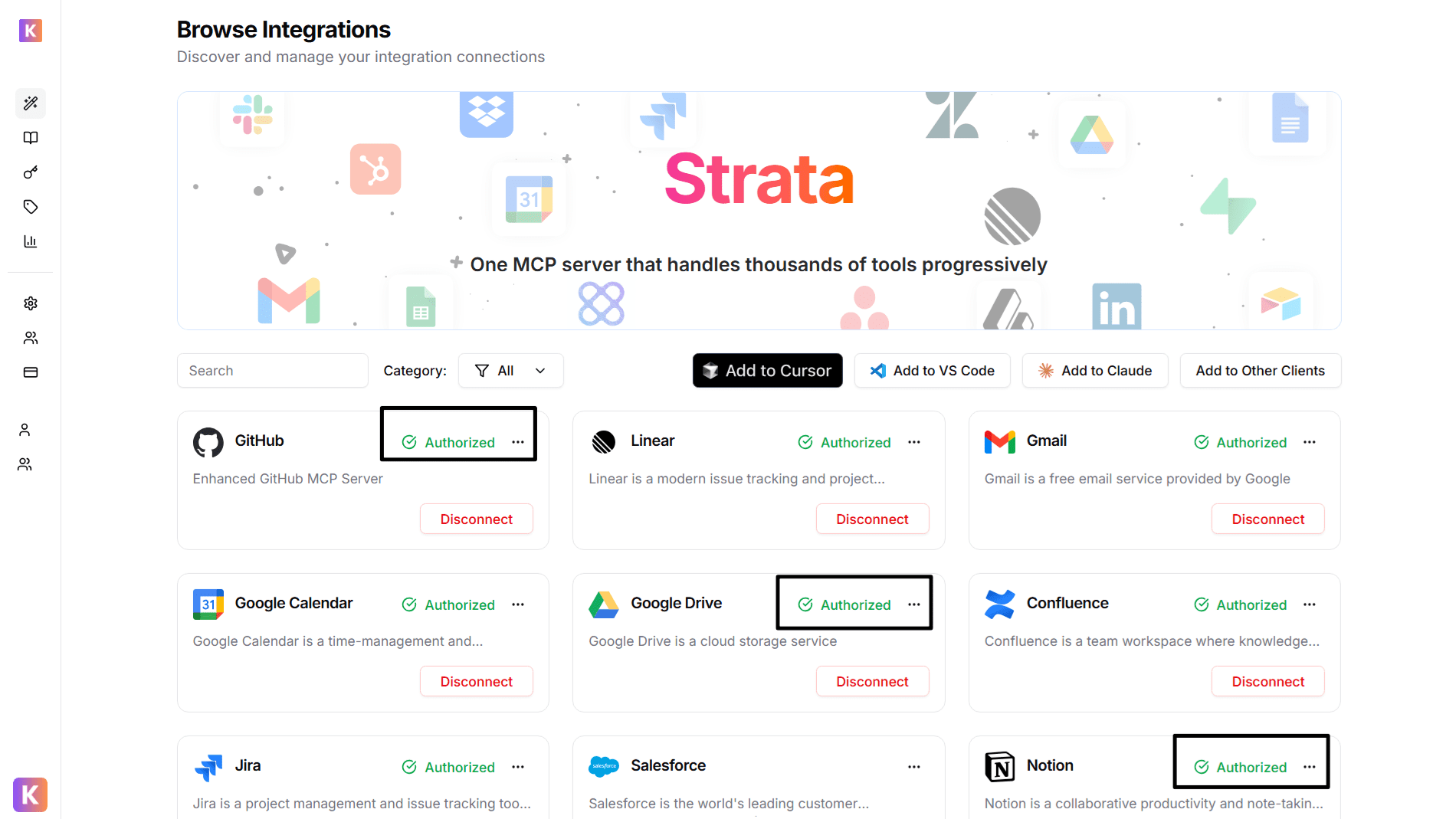
Navigate to the Klavis home page and click “MCP Server” in the left sidebar. You will see a list of MCP servers available in Klavis.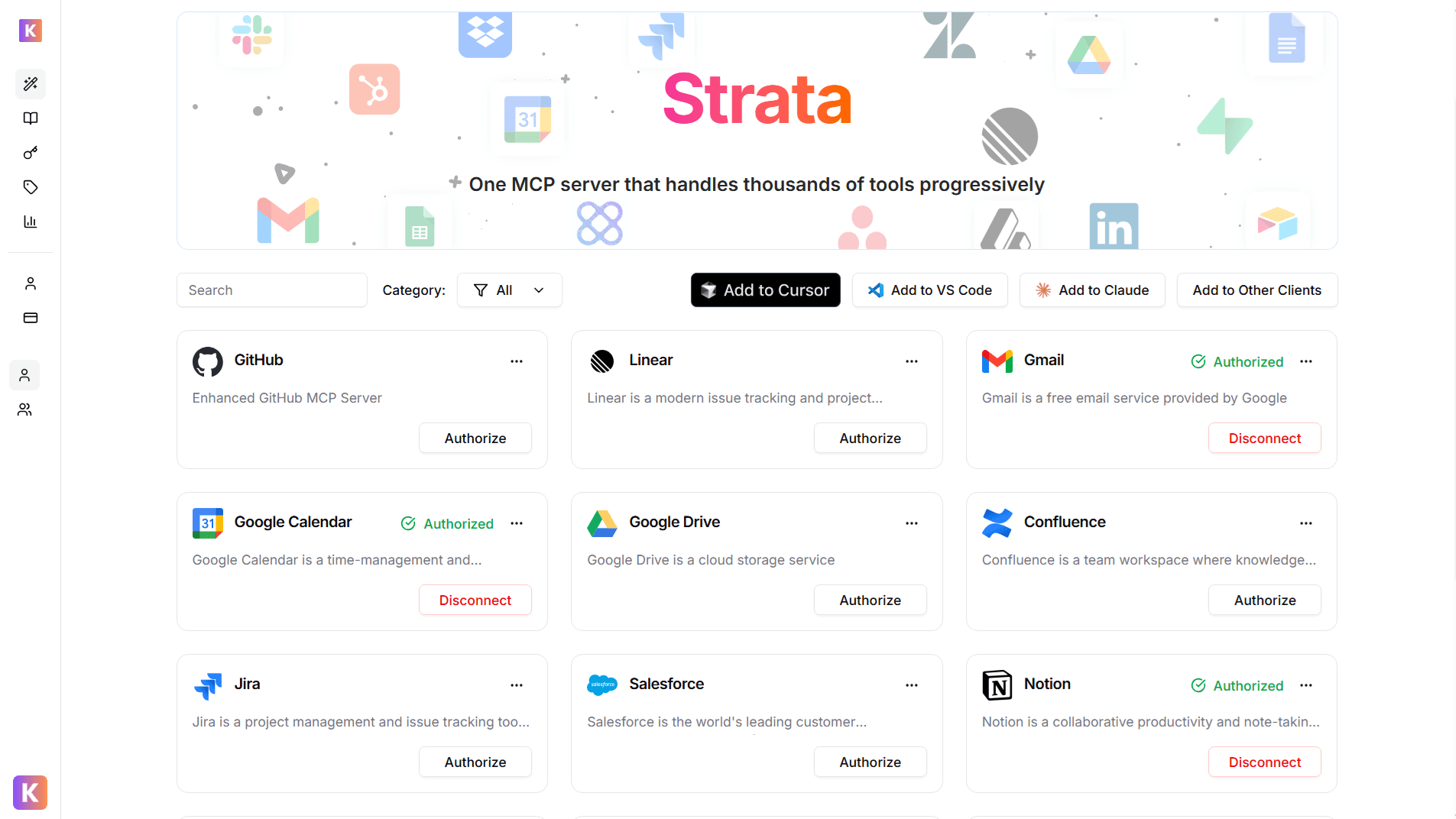
2
Get Strata Server URL
From Klavis Dashboard, click “Add to Other Clients” button to get your Strata Server URL.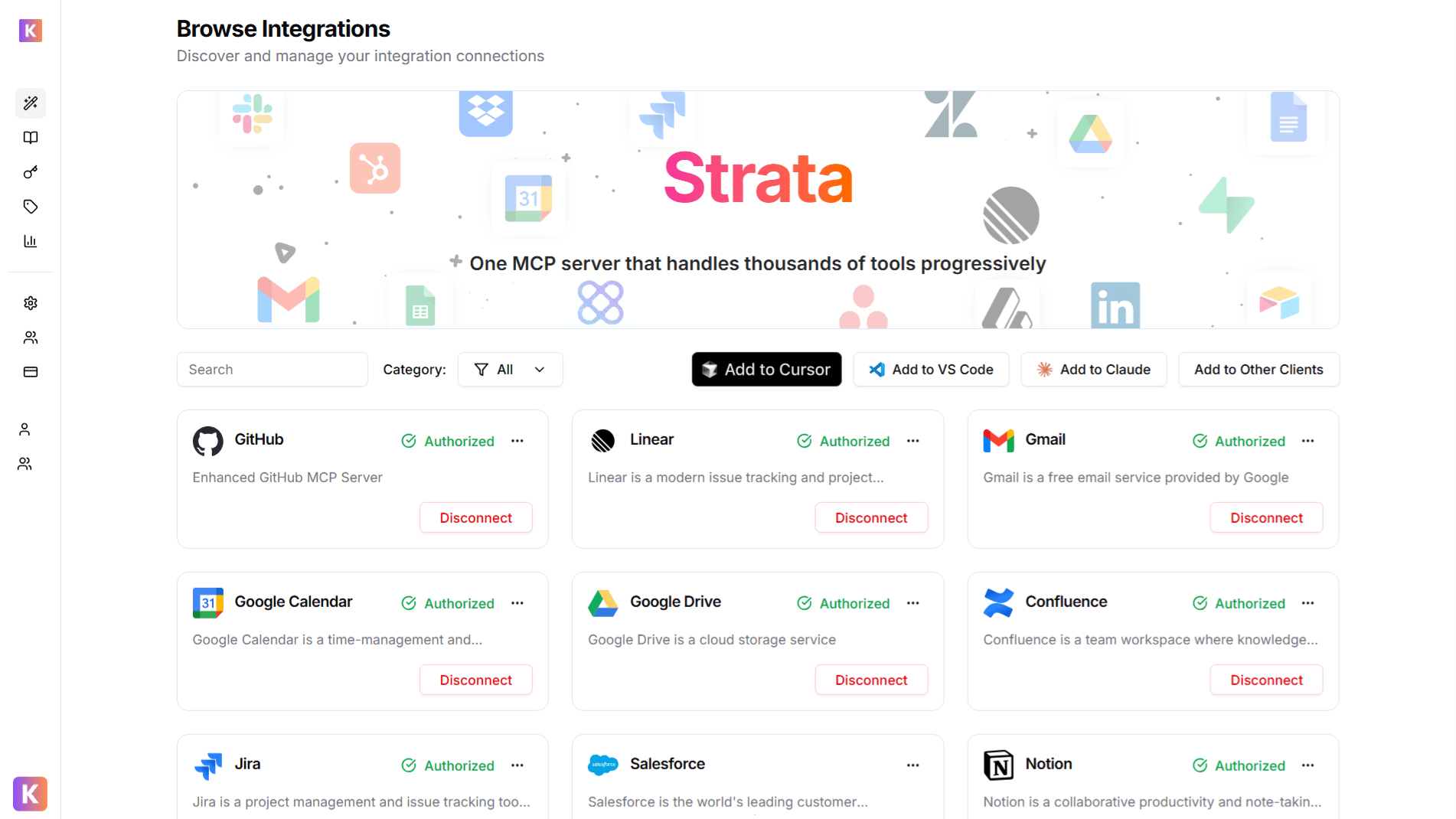
🔐 OAuth Services (Most Common)
🔐 OAuth Services (Most Common)
- Automatically redirected to OAuth authorization
- Sign in to your account (GitHub, Google, Slack, etc.)
- Grant necessary permissions
- Redirected back to Klavis automatically
🔑 API Key Services
🔑 API Key Services
- Prompted to enter an API key
- Follow service-specific instructions to generate key
- Paste key in the provided field
- Click “Save” to continue
3
Configure Kiro
Copy Your Server URL and configure Kiro with your MCP server settings.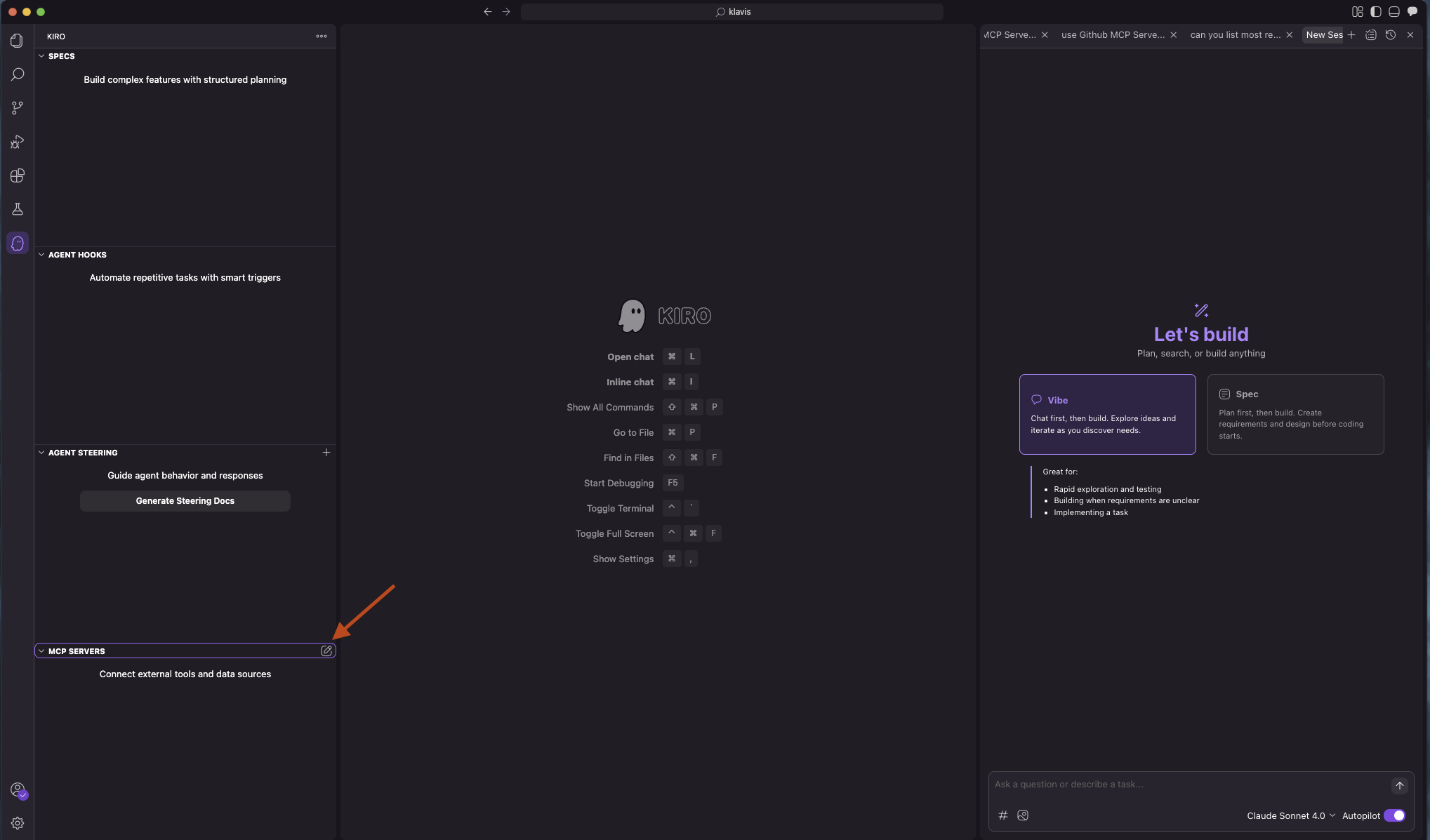
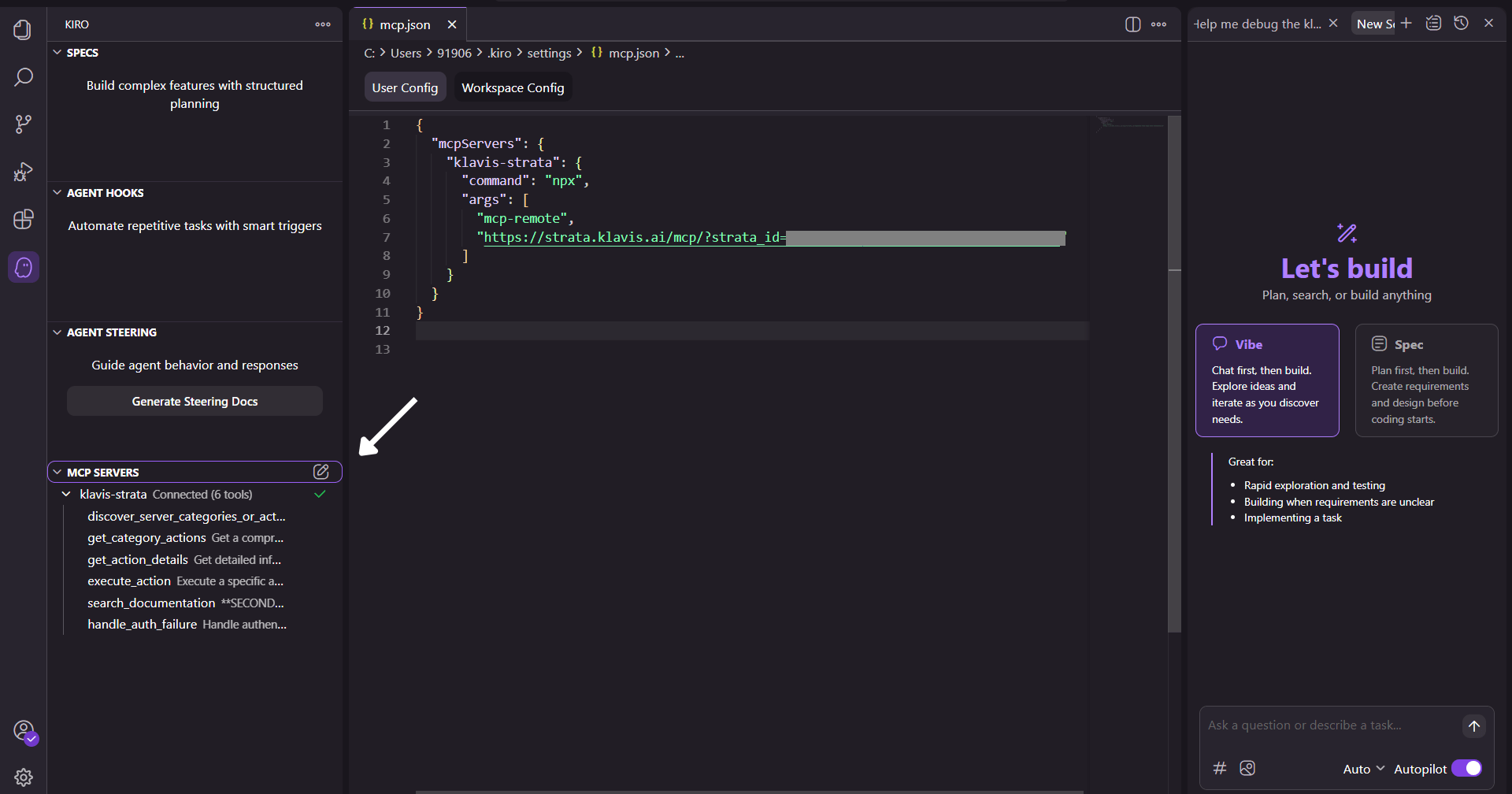
📋 Verify Tools Loading - tools will automatically reload
4
Start Using in Kiro
Open Kiro and start using natural language to interact with your connected services: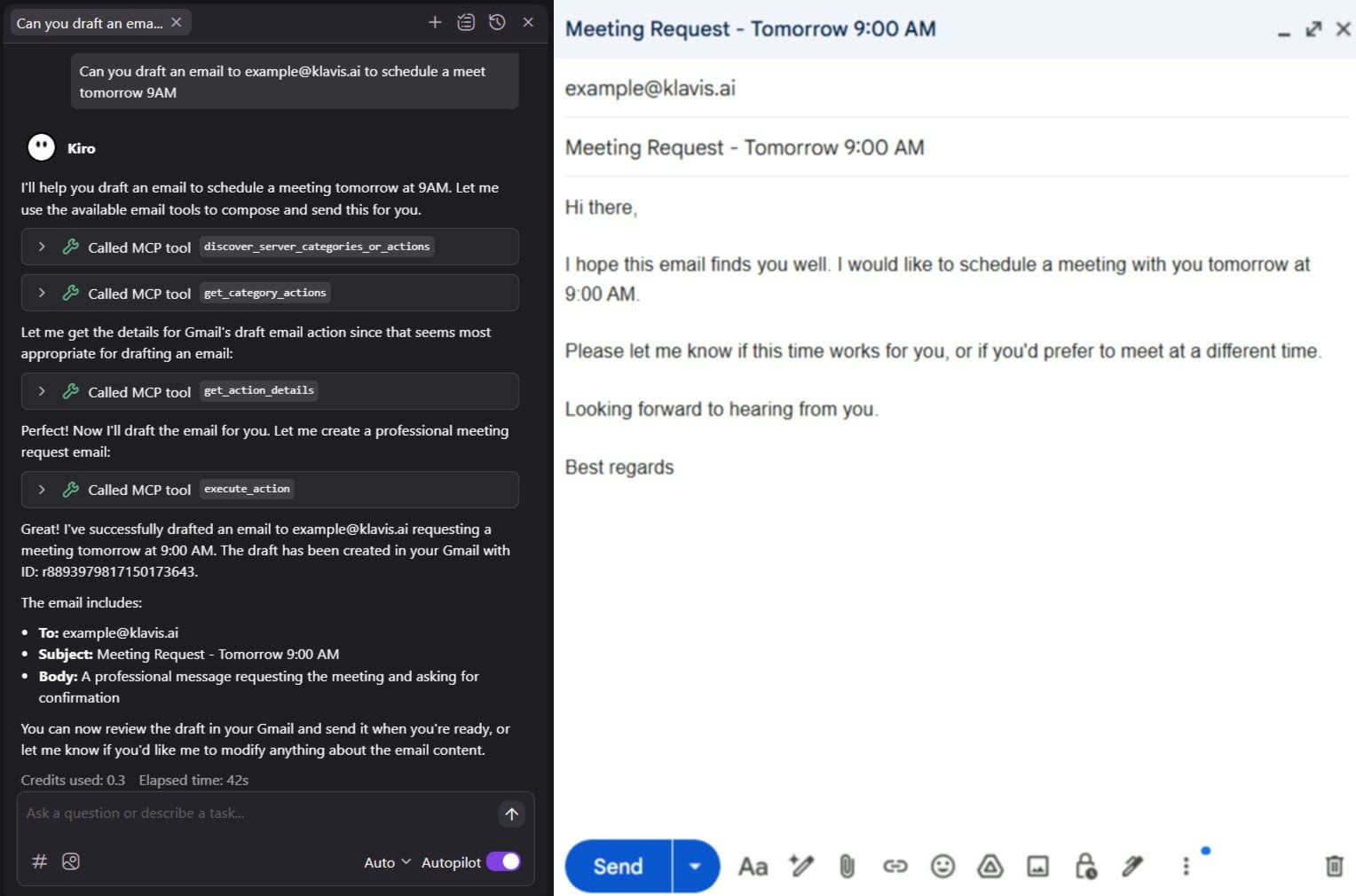
5
Happy Building! 🎉
You’re all set! Your Strata MCP server is now integrated with Kiro.
Troubleshooting
🔧 Tools Not Appearing
🔧 Tools Not Appearing
- Double-check your Server URL for typos
- Ensure stable internet connection
- Verify authentication in Klavis dashboard
- Check Kiro logs for error messages
- Try completely restarting Kiro
🔐 Authentication Issues
🔐 Authentication Issues
- Re-authenticate in the Klavis dashboard
- Check if your OAuth tokens have expired
- Verify API key permissions (for API key services)
- Ensure you’ve granted all necessary permissions
⚡ Performance Issues
⚡ Performance Issues
- Limit the number of active MCP servers
- Check your internet connection speed
- Restart Kiro periodically
- Contact support if issues persist
Need Help?
Community
Join our Discord for community support and discussions
Support
Contact our technical support team for assistance